Introducing Swift Flow
Swift Flow is a Next-Gen No-Code + AI Engine that lets ERP Business Analysts create workflows, notifications, integrations, and webhooks, and monitor real-time analytics across mobile, scanner, and web apps, GenAI platforms, portals, and ERP systems.
Core Components
Swift Flow consists of four types of components:
Swift Flow Workflows
Effortlessly create end-to-end workflows and connect them with push notifications, emails, and integrations.
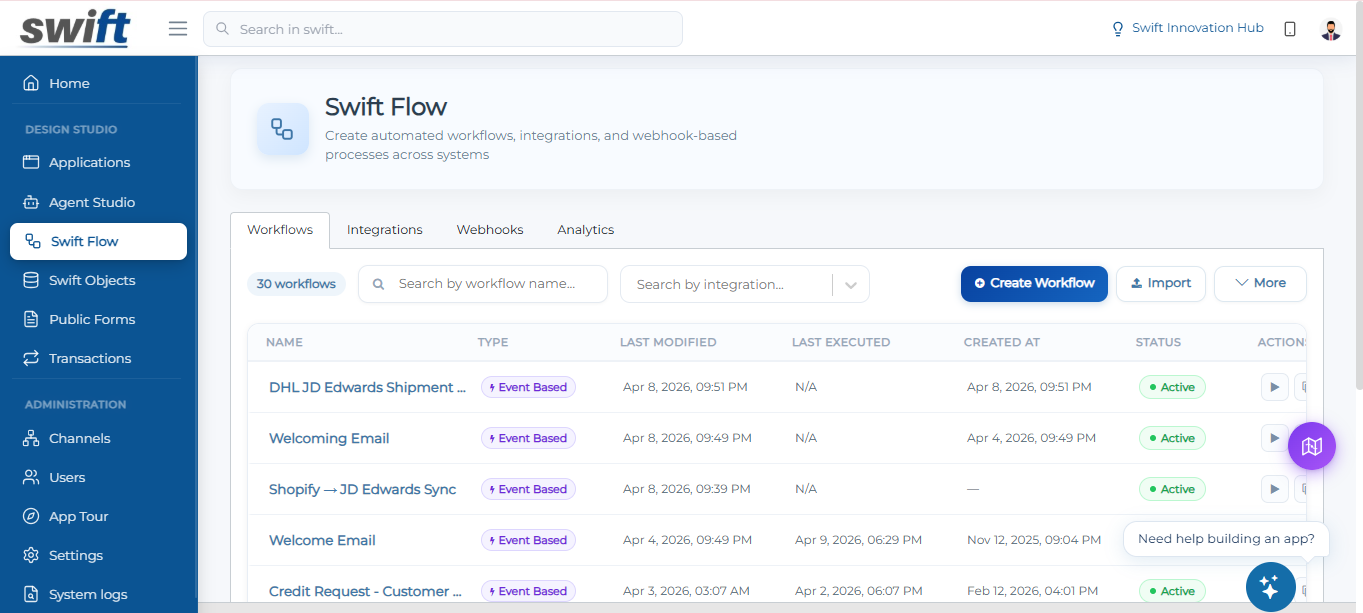
Create event-based workflows and map them within Swift app actions or webhooks.
Create schedule-based workflows and trigger them periodically.
Create no-code integrations and data mapping between multiple Swift channels.
Monitor real-time performance and transaction health across all workflows and integrations with next-gen analytics.
Swift Flow Integrations
Integration in the context of Swift Channels involves seamlessly connecting data streams to ensure smooth communication and data transfer across systems. By leveraging native connectors for ERPs (Oracle JD Edwards, SAP S/4HANA, Oracle Fusion, NetSuite), Databases, REST APIs, and SFTP connections, you can automate workflows, enhance data consistency, and streamline operations across multiple platforms.
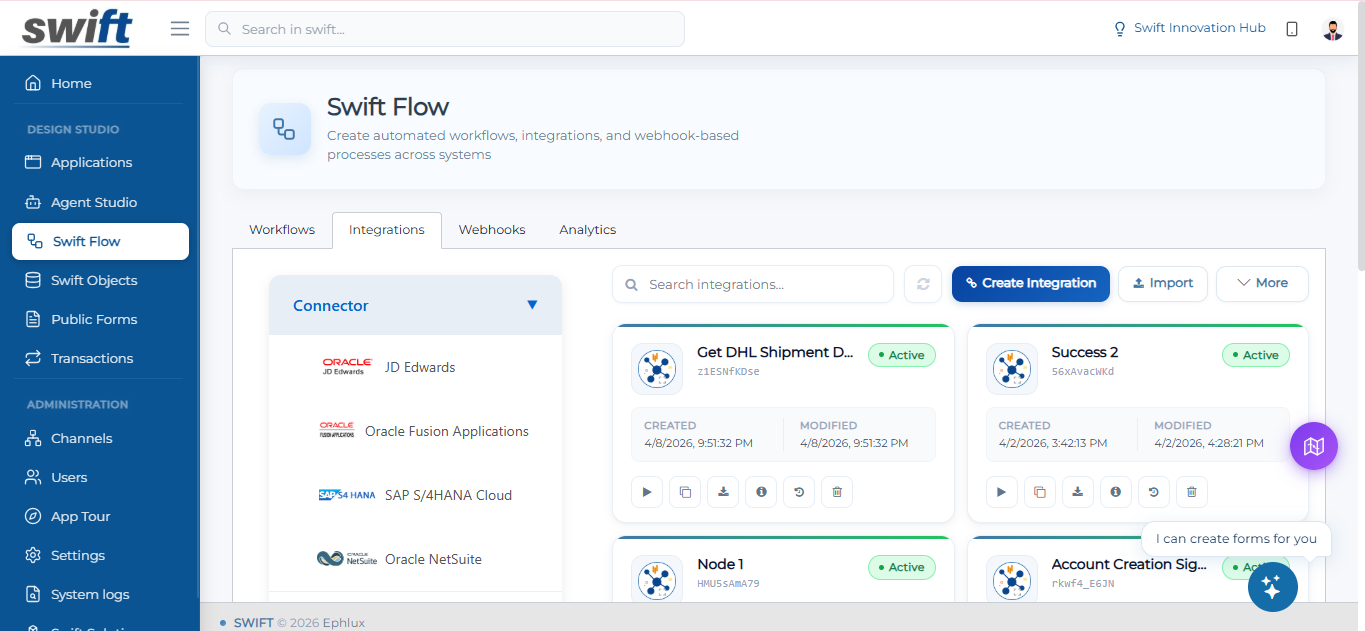
Create no-code dynamic integrations
Parameterize based on the metadata
Map data across multiple Swift Channels & Swift Objects
Swift Flow Webhooks
Swift Flow Webhooks enable seamless integration and automation within your Swift Workflows and applications. Using no-code webhooks, you can easily trigger actions and exchange data across various systems, significantly enhancing efficiency and flexibility.
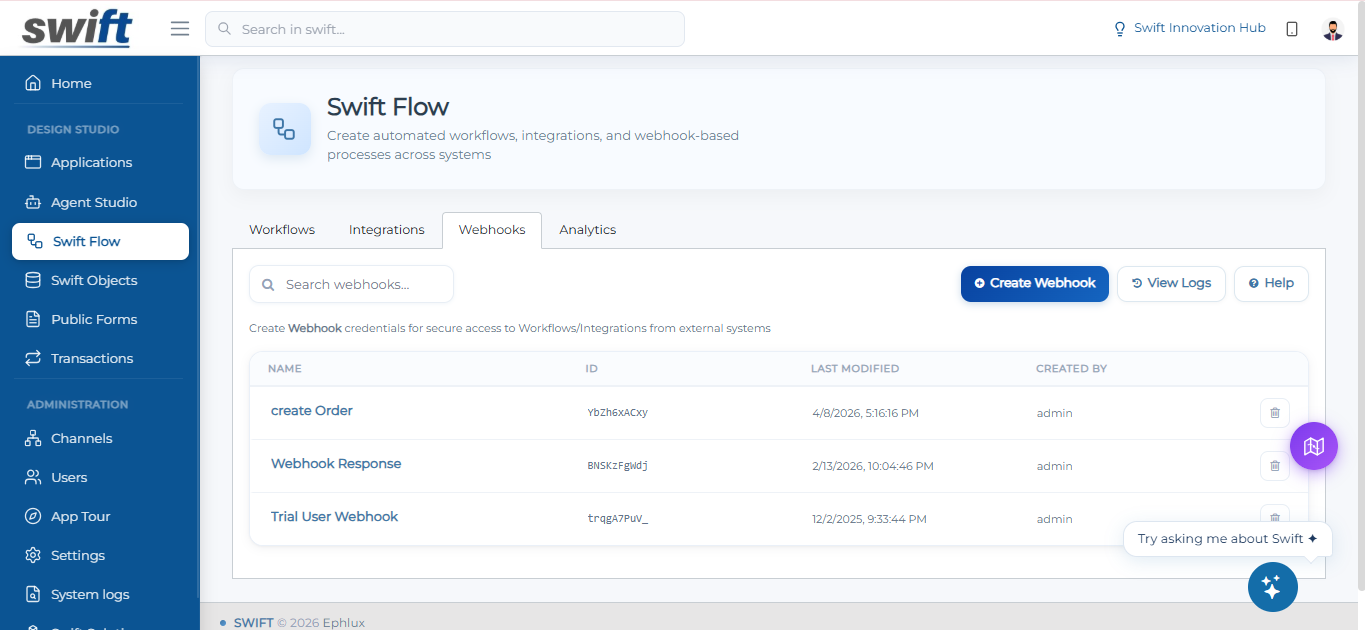
Register your Workflows and Apps to be available with the Swift Webhooks
Set enterprise-grade security using API Keys
Allow any 3rd party app in your enterprise to call any Swift Workflow using Swift Webhooks.
Monitor real-time Webhook Logs to monitor, filter, and audit triggers with full execution visibility.
Swift Flow Analytics
Swift Flow Analytics delivers real-time performance and execution insights, turning workflow data into actionable optimization for ERP teams.
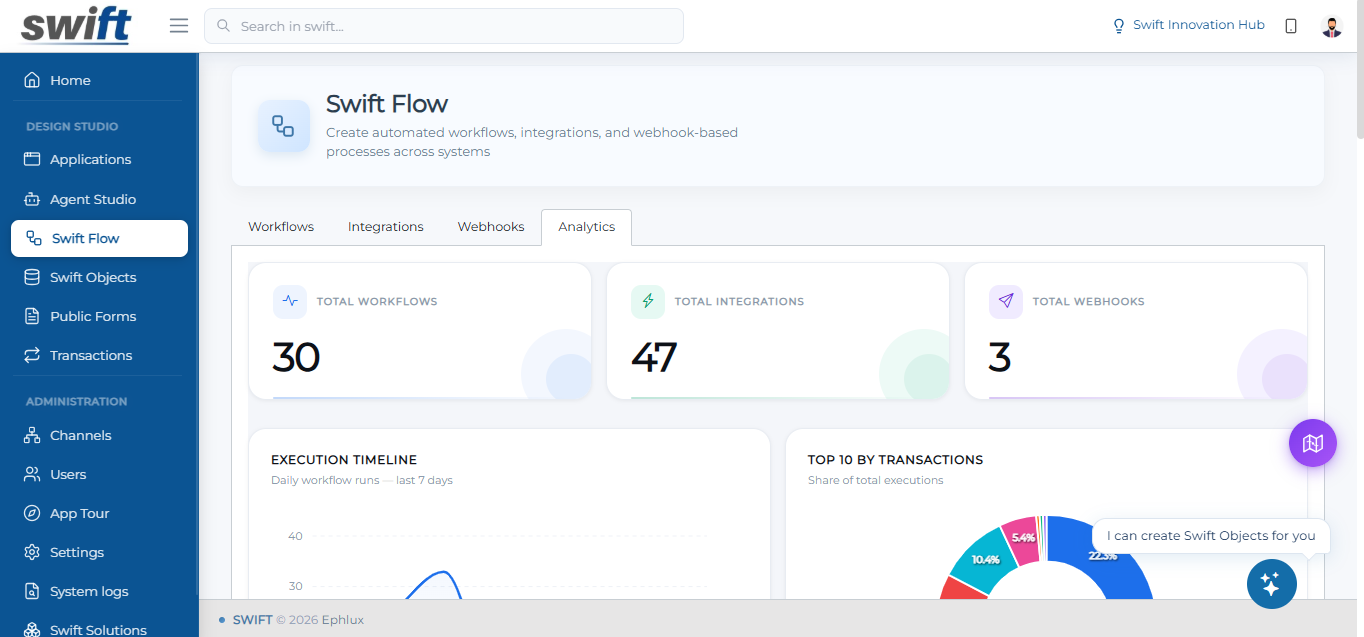
Instantly track the scale of your operations with live counts of Total Workflows, Integrations, and Webhooks at a single glance.
Identify patterns with a 7-day Execution Timeline and a "Top 10" transaction donut chart to visualize which processes are driving your business volume.
Analyze the Workflow Execution Overview to compare transaction counts against average response times, allowing you to proactively optimize slower logic branches.
Monitor the real-time status and sub-second latency of every connector, from JD Edwards and SAP to REST APIs, ensuring maximum reliability across your cloud bridge.
Access a ranked, searchable table of all business processes to audit transaction success rates and response speeds across the entire multi-cloud landscape.
How to create Swift Flows:
Login into the App Design Studio using your Swift Admin Account and Select Flow Builder from the Navigation Bar.
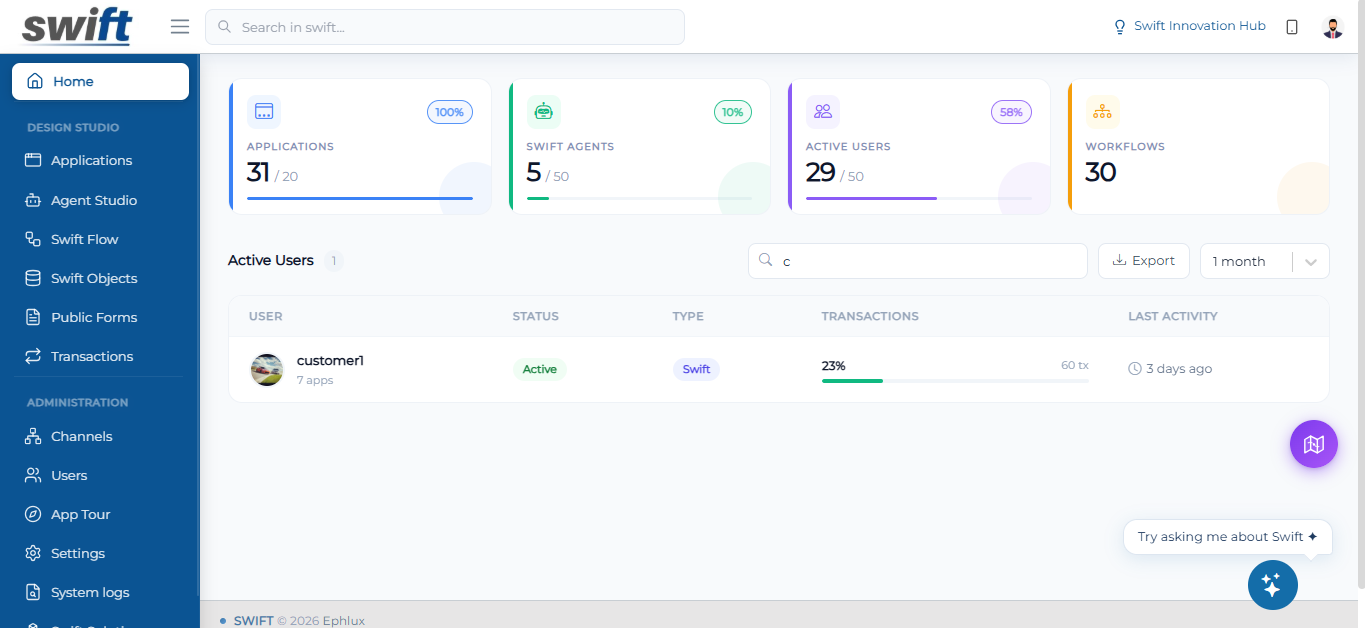
Upon selecting Swift Flow, you'll be directed to Swift Flow's main screen, where you can jumpstart automations using pre-built Templates, create Event-Based or Time-Based workflows on the Workflows tab, develop multiple enterprise integrations on the Integrations tab, configure secure triggers for external systems on the Webhooks tab, or monitor real-time performance and transaction health on the Analytics tab.
From the blue header bar of the Workflow screen, you can perform the following actions:
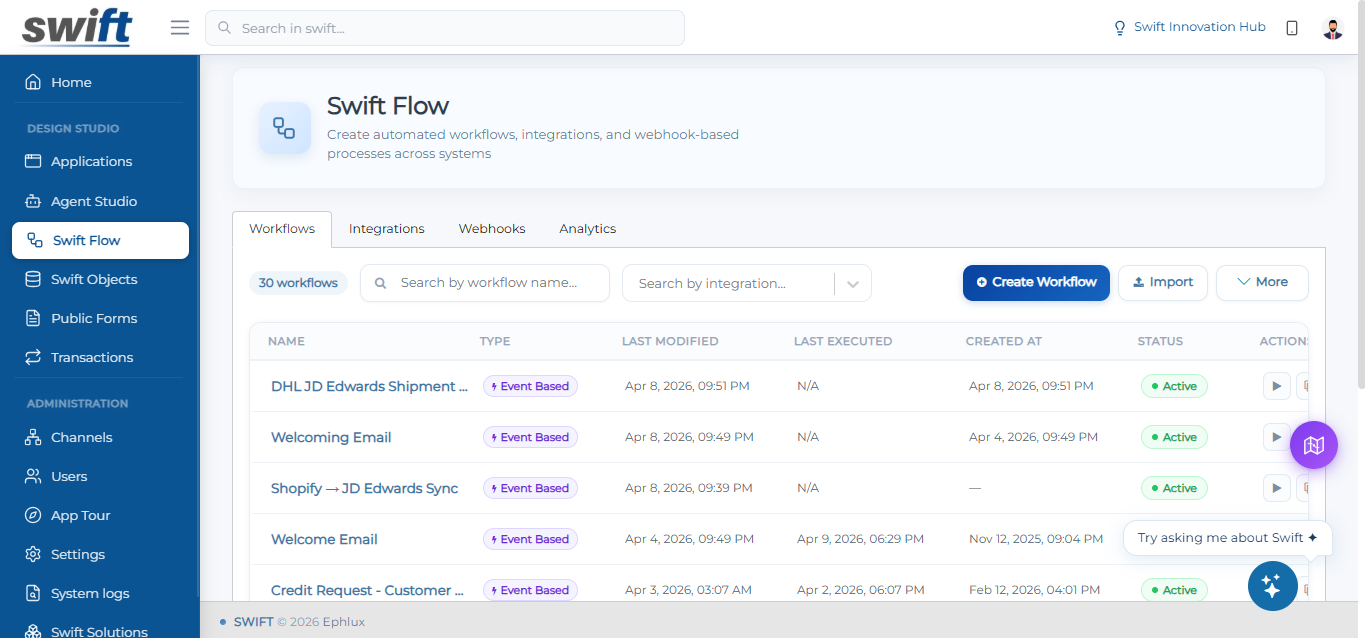
Create Event-Based or Time-Based workflows by clicking the "+" icon.
Instantly search for workflows by name or filter them by their associated integration using the dual search bars.
Import workflows by clicking the import icon.
Access the More dropdown to jumpstart your project with pre-built Templates or access specialized Help documentation.
On the list view of Workflow and Integration, you can:
See newly created workflows or integrations listed.
Toggle their status between active and inactive by clicking on the status indicator.
Execute the workflow or integration by clicking the play icon, running it with all applied configurations.
Replicate existing workflows instantly for faster development cycles.
Export any workflow or integration by clicking the export icon next to it.
View logs of your workflow or integration by clicking the "i" icon.