Managing Swift Objects
Creating and configuring data structures in Swift is designed to be simple yet powerful. From setting up objects and defining schemas to enabling relationships, APIs, and advanced automation, Swift provides a complete framework to build scalable and connected enterprise data systems without complexity.
Creating a Swift Object
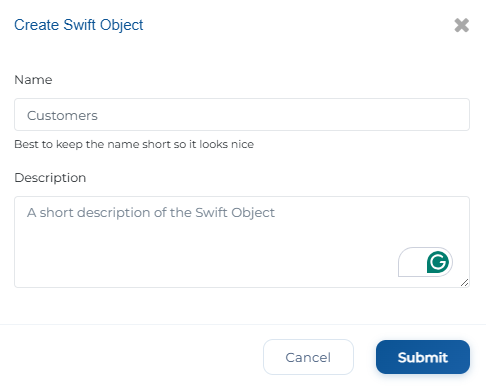
Click on the Create button.
A pop-up will appear where you need to provide a Name and Description that fit your requirements.
Click Submit, and the newly created Swift Object will be displayed in the Swift Objects list.
Set Object Schema
Once you create an object, you can easily define its structure by dragging and dropping different data fields like text, numbers, radio buttons, and dates.
You can also add nested objects by using an Object Data field within your Swift Object.
That’s how simple it is to set up your Swift object with the Swift Object Designer!
Swift Objects also supports intelligent data linking through the Relationships feature:
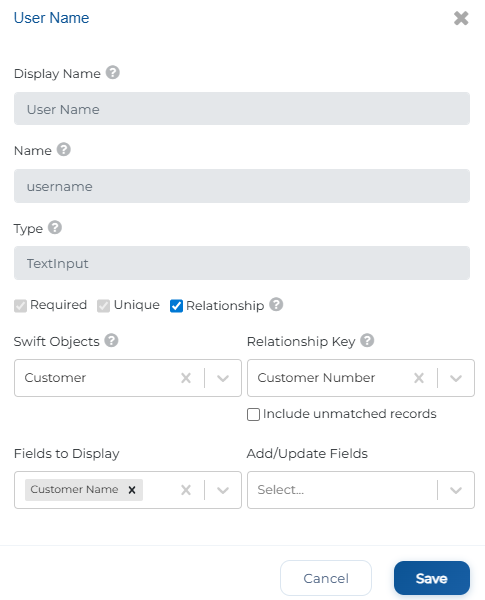
Linking Entities: When configuring a field, check the Relationship option to connect it to another Swift Object (e.g., linking a 'Work Order' to a 'Customer').
Configuration: Define the Relationship Key, choose Fields to Display in the UI, and toggle Include unmatched records for greater data view flexibility.
Version Control and History
Swift ensures data integrity by tracking every modification:
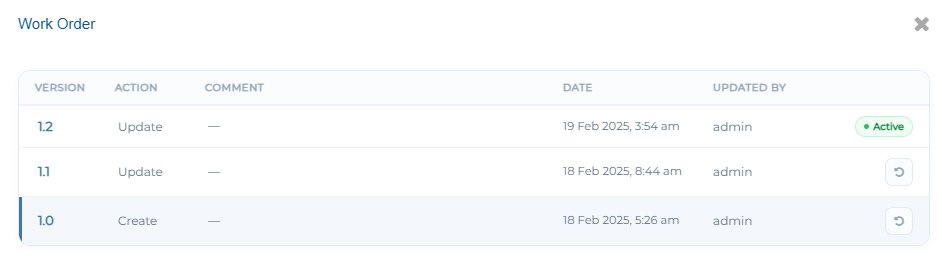
Versions Modal: View a complete history of an object, including version numbers (e.g., 1.0), actions performed (Create/Update), timestamps, and the user who made the change.
Revert & Publish: You can work on drafts and only "Publish" when ready, or "Revert" to a previous state if you make a mistake.
Public API Access
Transform your Swift Objects into accessible endpoints for external integrations:
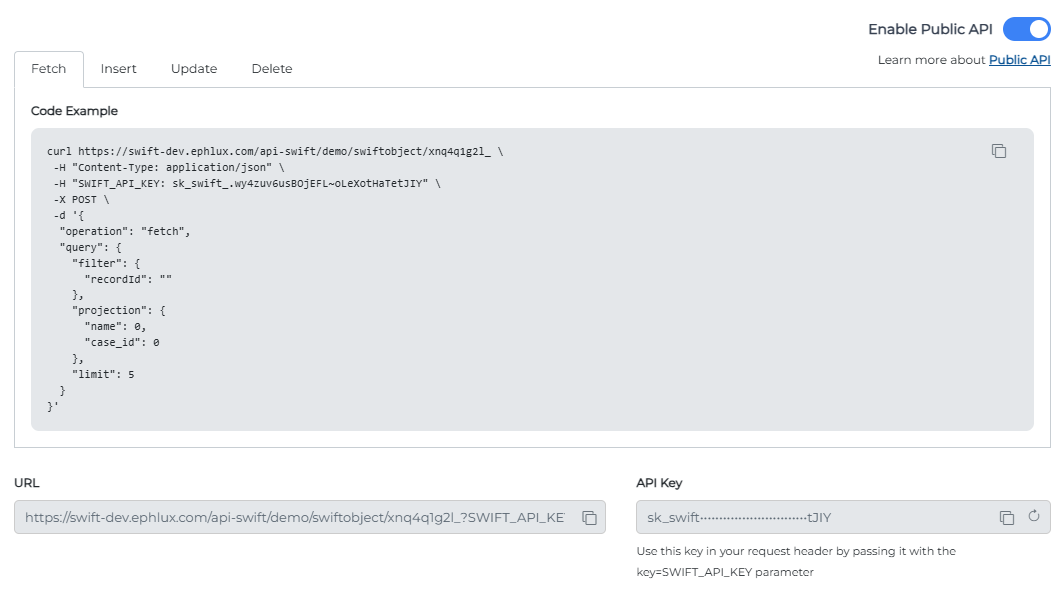
Enable API: Toggle "Enable Public API" within the object settings.
Code Examples: Swift automatically generates CURL examples for Fetch, Insert, Update, and Delete operations.
Security: Access is managed via unique API Keys and specific Endpoint URLs provided directly in the interface.
Integrating Swift Objects into Custom Forms
Moreover, seamlessly integrate Swift Objects into custom forms by selecting them as a channel. This simplifies workflows and enhances usability by ensuring smooth data interactions across various processes.
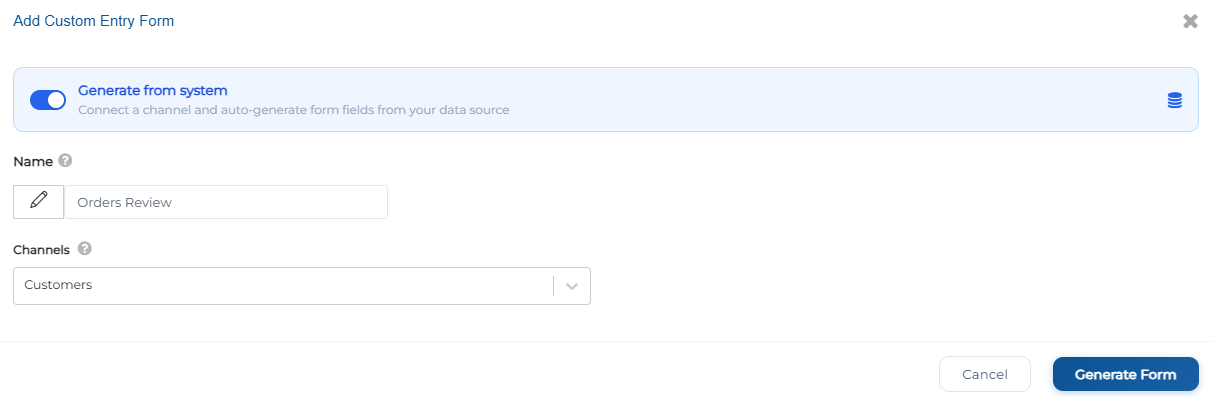
This streamlines workflows, improves usability, and gives businesses full control over their data structures for better efficiency and flexibility.
Swift SuiteQL Automation
Furthermore, we’ve integrated SuiteQL on NetSuite into Swift, giving you full control over your NetSuite data without writing code.
Now available in Channels, this will let you:
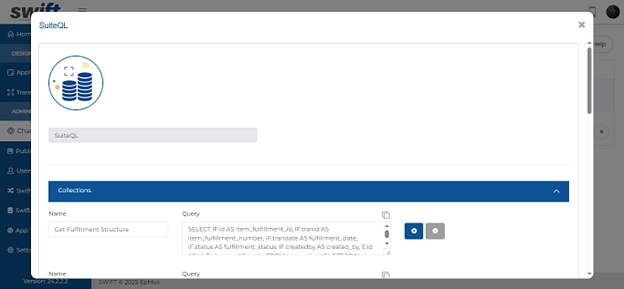
Add, remove, and copy multiple queries effortlessly
Define a query name and structure for easy execution
Retrieve real-time NetSuite data within your workflows
Provide a Query Name and a SuiteQL statement, and Swift will dynamically fetch and process the data.
For example, with the "Get Fulfillment Structure" query, you can instantly pull fulfillment details, including item fulfillment ID, transaction number, status, creator information, and other customized data structures, all within your Find and Browse Form
Now, when you navigate to any app and access your Custom Find & Browse Form, clicking the gear icon on the form will open a configuration pop-up.

In the Search Criteria section, you can:
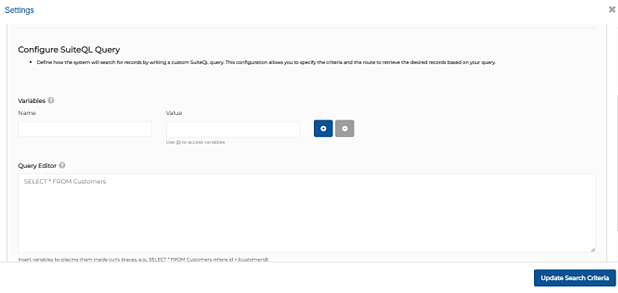
Configure SuiteQL Query by defining how the system will search for records by writing a custom SuiteQL query. This configuration allows you to specify the criteria and the route to retrieve the desired records based on your query.
This means faster data access, improved reporting, and smarter automation, all without any manual coding.
That’s it for setting up and configuring Swift Objects. From creation and schema design to relationships, APIs, and SuiteQL automation, you now have everything needed to build powerful, connected data structures.