What's new in Swift Release 25 in July?
The July 2025 release focuses on enhancing the design and management capabilities, alongside delivering a more intuitive and responsive experience for end-users.
Read on to discover the highlights of this release and unlock new possibilities for your app automation journey.
Swift Release 25 – July features the following capabilities:
Default to Current Time: Entry and View forms now automatically populate the current time by enabling this option.
Publish Notes: Leave comments when publishing your forms, track changes like a pro.
Swift Agent View: Easily toggle between compact and full-screen chat with a single click.
Instant Tour Previews: Test App Tours in seconds while creating them in Designer.
Enhance Message Popup Configuration: Format custom messages with rich text editor and make multiple popups for a single form.
Badge Visibility in Form Designer: New visual badges now highlight required and hidden fields in the Form Designer, giving designers a quick and clear overview of field properties at a glance.
SSO-Only Logins: Hide username/password fields for a cleaner SSO experience.
Designer Users List: All system users in one easy-to-search table.
So without further ado, let’s dive into the exciting new features we recently released!
Default-to-Current Time
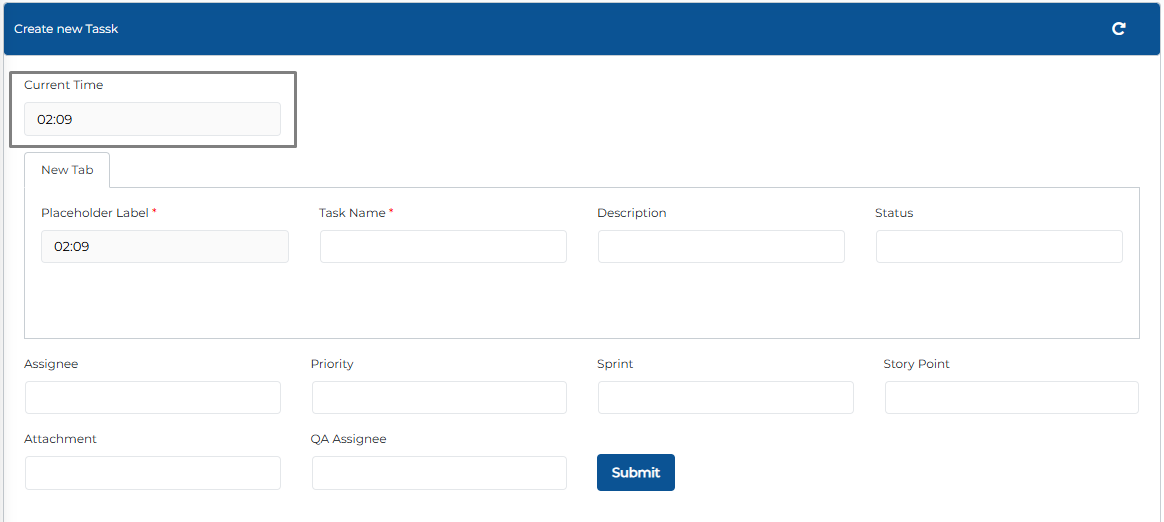
With this release, a new 'Default to current time' option in the 'Date' component auto-fills the time field with the system time when enabled.
How It Works
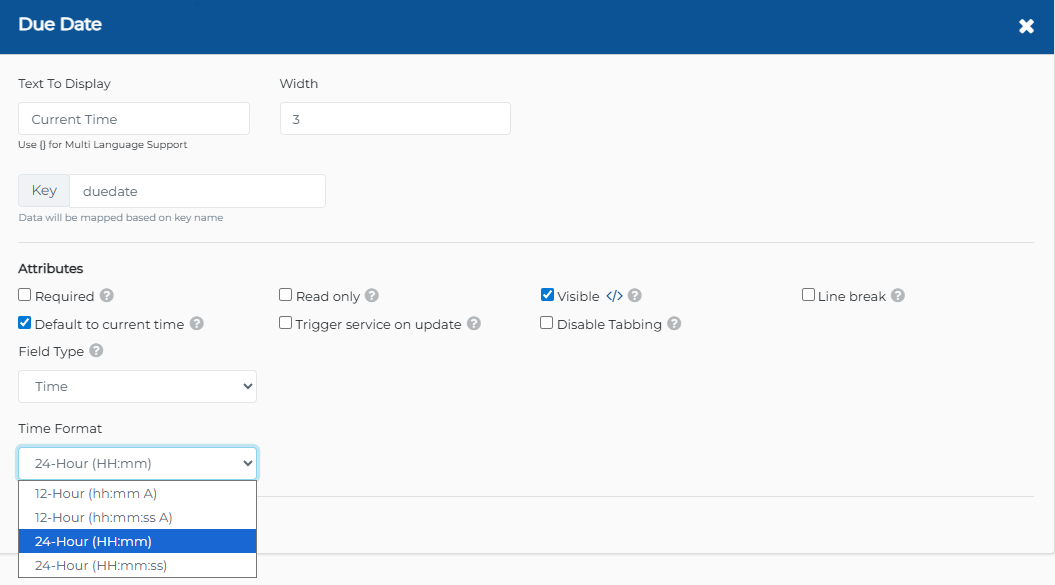
Drop a Date component into your form.
Select the Field Type as Time.
In the attributes panel, just tick the "Default to current time" checkbox.
Boom!
The time field now auto-fills with the system time when the form loads.
Leave Notes When Publishing Forms
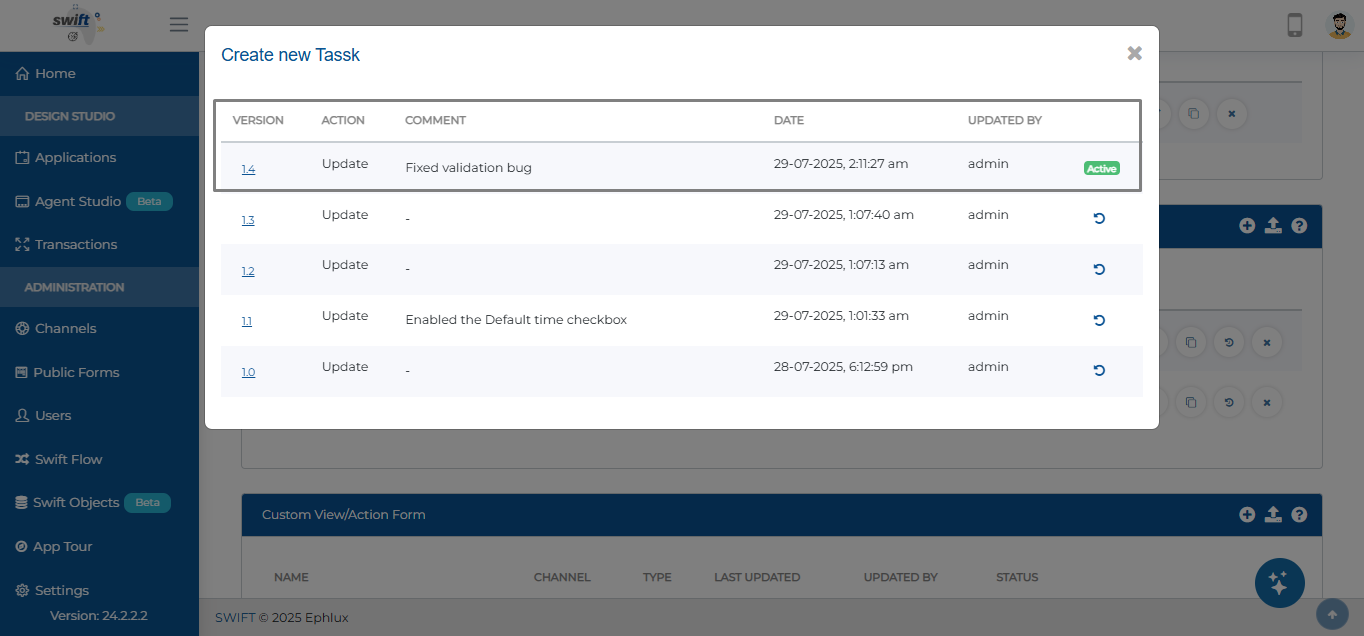
With this release, A new option has been introduced to add descriptive comments when publishing a form across the platform.
How to do it?
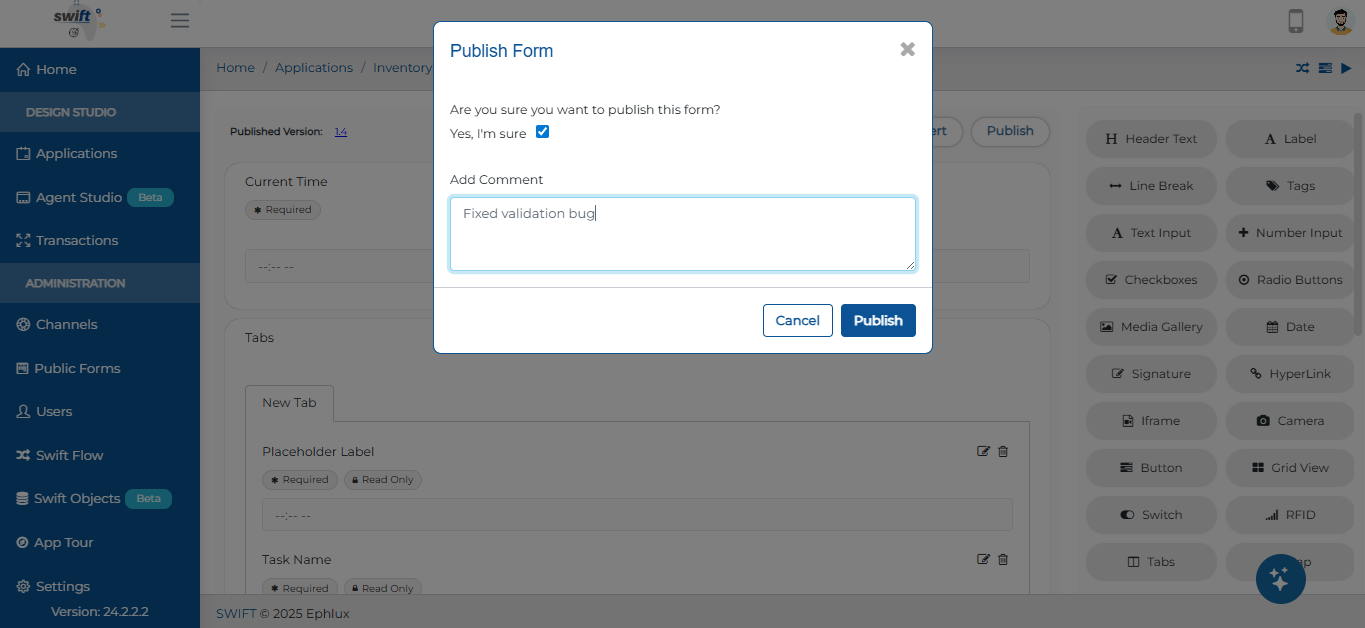
Hit Publish on your form.
Confirm with "Yes, I'm sure."
A handy text box pops up—add your comments (like "Fixed validation bug" or "Updated fields for Q3").
Your note gets saved in the form’s version history, making it easy to track changes.
This provides a clear audit trail for form versioning.
Swift Agent View
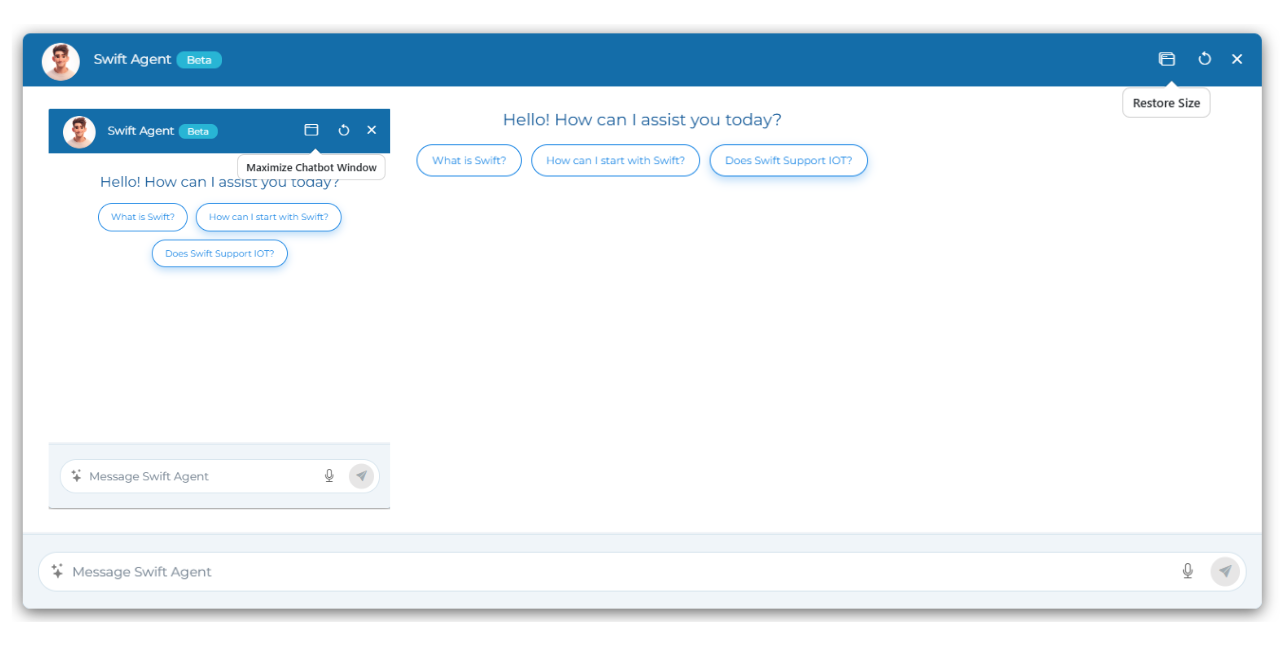
With this release, the Swift AI Agent chatbot interface now provides options to switch between a compact view and an enlarged view.
Try it:
Click the maximize icon to go big.
Click the restore icon to shrink it back.
This feature allows users to adjust the interface for better visibility and interaction.
Preview App Tours Instantly
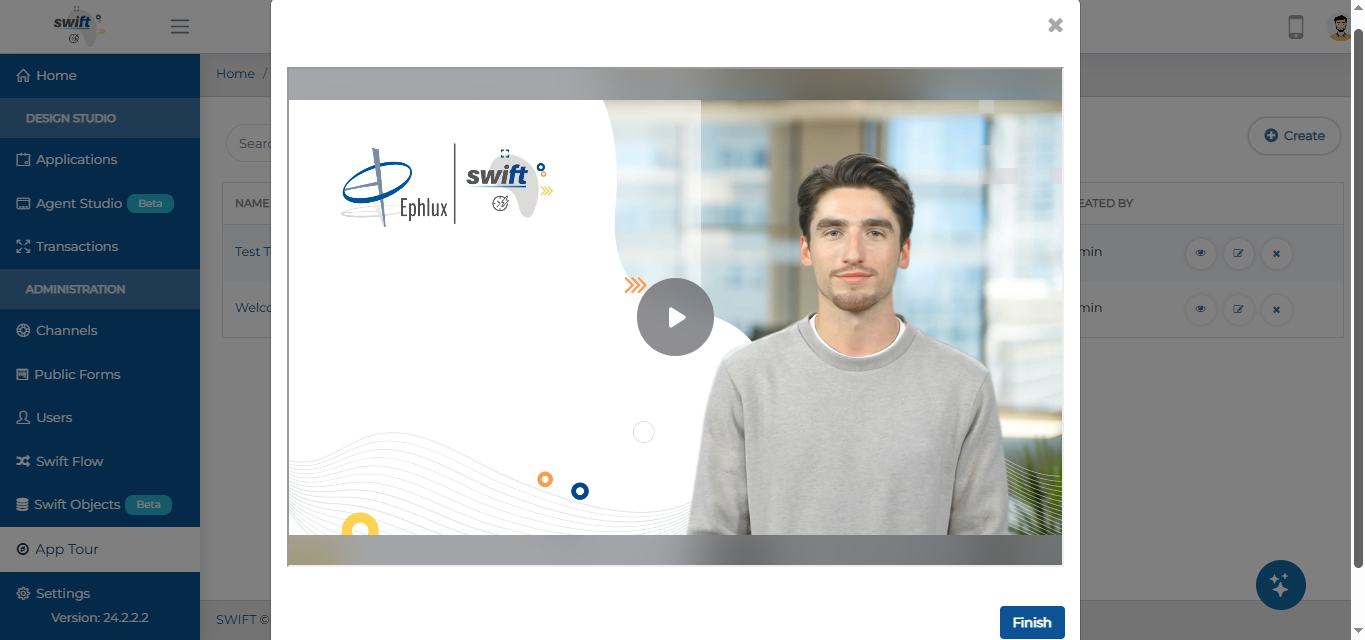
With this release, App Tours can now be previewed directly from the App Tour listing page within the App Tour module.
How?
Head to the App Tour section.
Find your tour and click the 👁️ (eye) icon.
Watch it play out—just like your users will!
This allows users to immediately view and test the sequence and content of a created App Tour without leaving the administrative interface.
Enhance Message Popup Configuration
Make your success/error messages stand out with formatting (bold, lists, etc.) and even set up multiple popups in one go.
Enable Rich Text Editor
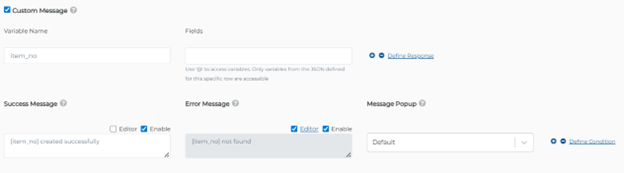
Tick the "Editor" box under Success/Error Messages.
Style your custom message as needed like a pro.
Multiple Popups
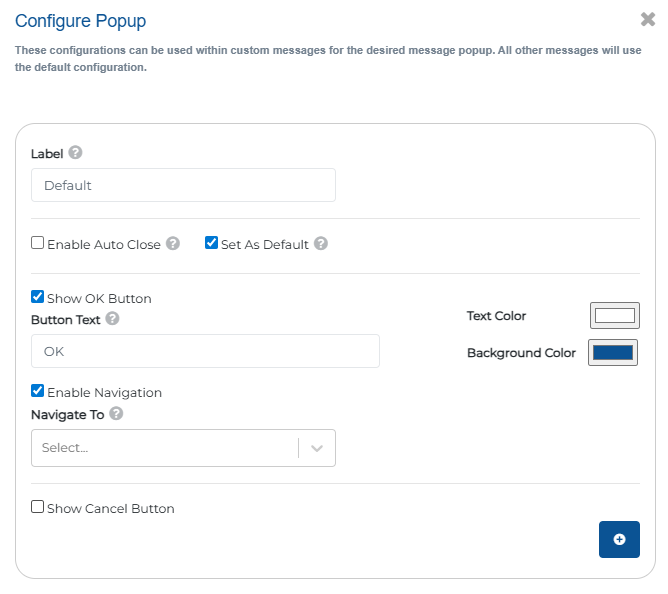
In Message Popup settings, hit the + icon to add more.
Customize each one (delay, buttons, navigation).
Use the “Set As Default” option to make a specific pop-up default for all custom messages on your form e.g., Trigger Service, Require,d etc
Select the relevant pop-up while making the customized message inside your form.
These updates provide granular control over user feedback and notification displays.
Design Field Attribute Indicators
Designing forms?
Now you’ll instantly know if a field is required, Read-Only, or hidden with these handy badges right on the placeholder.

No more digging through settings to check field rules.
SSO Login Screen
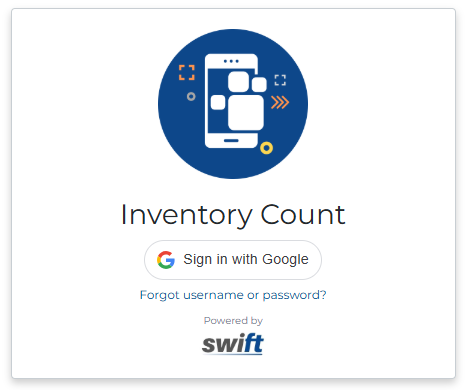
With this release, an option is available to hide username/password fields on login screens when SSO is enabled, redirecting users directly to the SSO provider (e.g., 'Sign in with Google').
How?
Go to App Settings > Enable SSO.
Check "Hide Username & Password."
Users will only see the SSO option (e.g., "Sign in with Google").
This configures the login interface to prioritize SSO authentication for enabled applications.
Unified All System Users View
Managing users just got easier!
The System Users screen now shows everyone (Admins and BA’s) in a single list.
How to View: Access the 'System Users' screen directly from the administration menu inside Users Section.
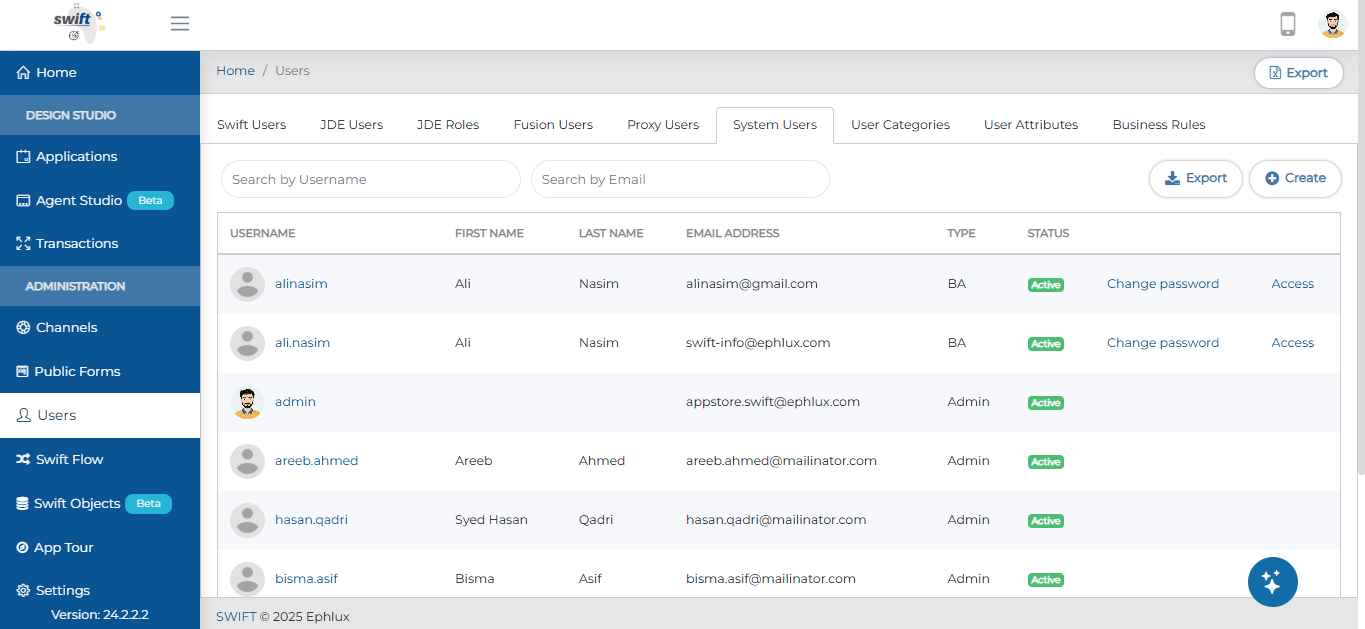
This streamlines the process of viewing and managing all system user accounts.
Wrapping Up
That wraps up our latest updates to Swift!
These updates collectively aim to provide deeper control in form design, streamline administrative processes, and refine user interactions across your applications.
📌 Pro Tip: Pair the new Dynamic Form Validation with Context-Aware Actions and Smart Cache Sync to create fluid, responsive interfaces that feel like magic to your users.
Stay tuned for more innovations, and as always, happy designing with Swift!
Thank you for being a part of the Swift community. Here's to optimizing your processes and achieving success!
With 💙 from Swift
Your feedback is essential in driving us forward, so please don't hesitate to share your thoughts with us, and stay tuned for more groundbreaking features as we evolve!