What's new in Swift Release 24 in July?
We're excited to share our latest updates for July 2024. Swift now has even better features for easier use and smoother operations.
Get ready for a more robust, efficient, and enjoyable automation journey.
Read on to discover the highlights of this release and unlock new possibilities for your app automation journey.
What’s New
Barcode/QR Code Data Extraction: The "Find & Browse Form" now supports the extraction of specific content from barcodes and QR codes, enhancing data accuracy and efficiency
Row-Level Media Object Upload on Grid View: Users can now upload media objects directly at the grid row level, allowing for detailed and context-specific media attachments.
ZPL Label Designer at "Find & Browse Form": The "Find & Browse Form" now includes a ZPL designer, enabling the design and printing of labels using the Zebra Programming Language (ZPL) format.
Slider Control Component: A new slider control component has been added, allowing users to navigate multiple images or videos in a media gallery seamlessly.
So without further ado, let’s dive into the exciting new features we recently released!
Data Extraction at FBF Level
This feature lets users extract data from barcodes and QR codes directly within the FBF level.
Now, you can scan barcodes or QR codes and convert the scanned data into either format. The Advanced Data Extraction feature lets users configure the extraction of specific content from scanned data, like extracting a single word from a large amount of scanned content.
How to use this feature
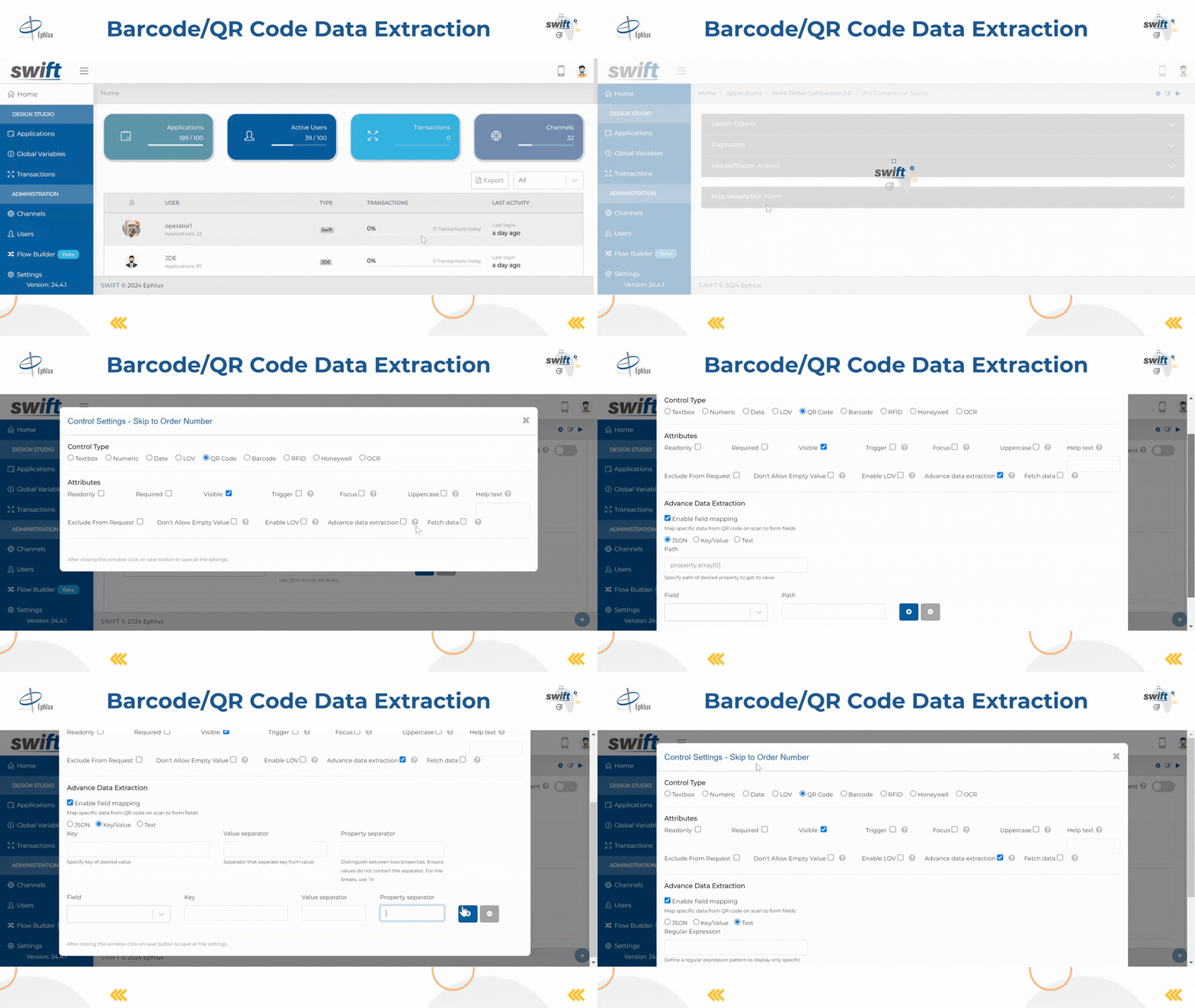
To enable data extraction in your Find Browse form
Open the form and select the search field.
Click the gear icon and choose the QR code as the control type.
Enable "Advanced Data Extraction" and select your data format (JSON, key-value pair, or text).
Configure the extraction path or regex, then save.
End User Experience
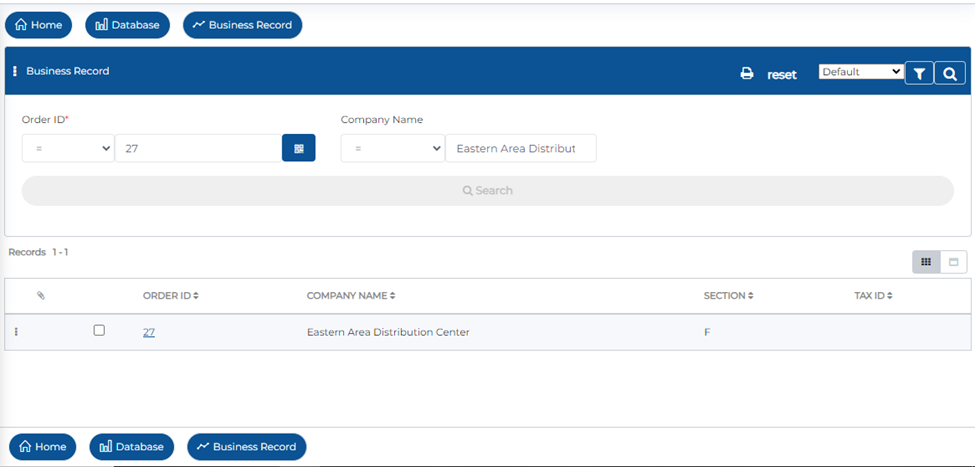
Open the FBF, and click the QR code button.
Scan with the camera, and the data will populate automatically.
This makes data entry easier for field technicians and ensures accurate data capture.
Media Object Upload at Grid Row Level
This feature lets users upload and view attachments directly within the grid, providing a convenient way to associate visual or multimedia content with specific data entries.
How to use this feature
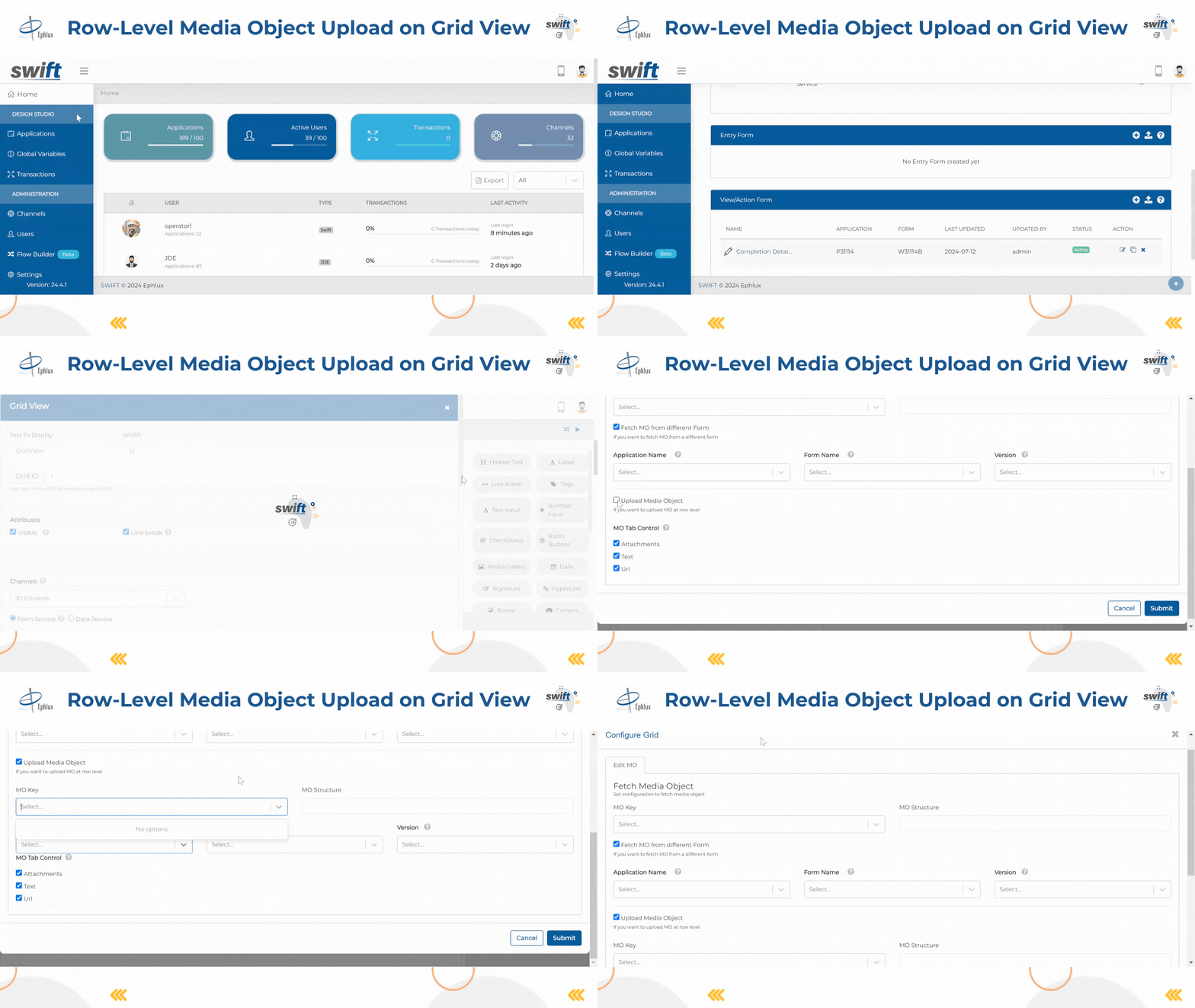
To use Media Object (MO) at the grid row level, follow these steps
Navigate to the Designer and open the grid view you want to modify.
Ensure that the grid is set to "Editable."
Click on the “Configure Grid” link located just above the grid.
In the "Edit MO" tab, select the upload media objects checkbox and provide the desired application configuration settings.
End User Experience
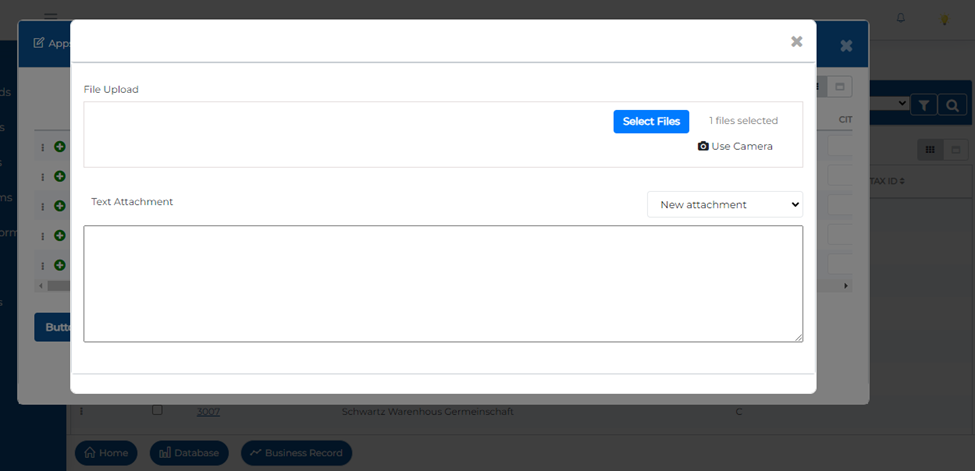
Open the view action that contains this grid view. Next to each row, you will see three dots (more options menu).
Click on the three dots and Upload images or videos.
Repeat for each row.
Save changes.
ZPL designer at FBF level
Swift offers two features at the Find & Browse Form (FBF) level to facilitate ZPL printing:
Printer Categorization at Search Filters
Row Level Printing
How to use this feature:
1. Printer Categorization at Search Filters: This feature allows you to use the search filter as your printing list categorization. For instance, if you search for data with location "A," only the printers available at that location will appear on the printer list.
Here's how to configure it
Printer Categorization
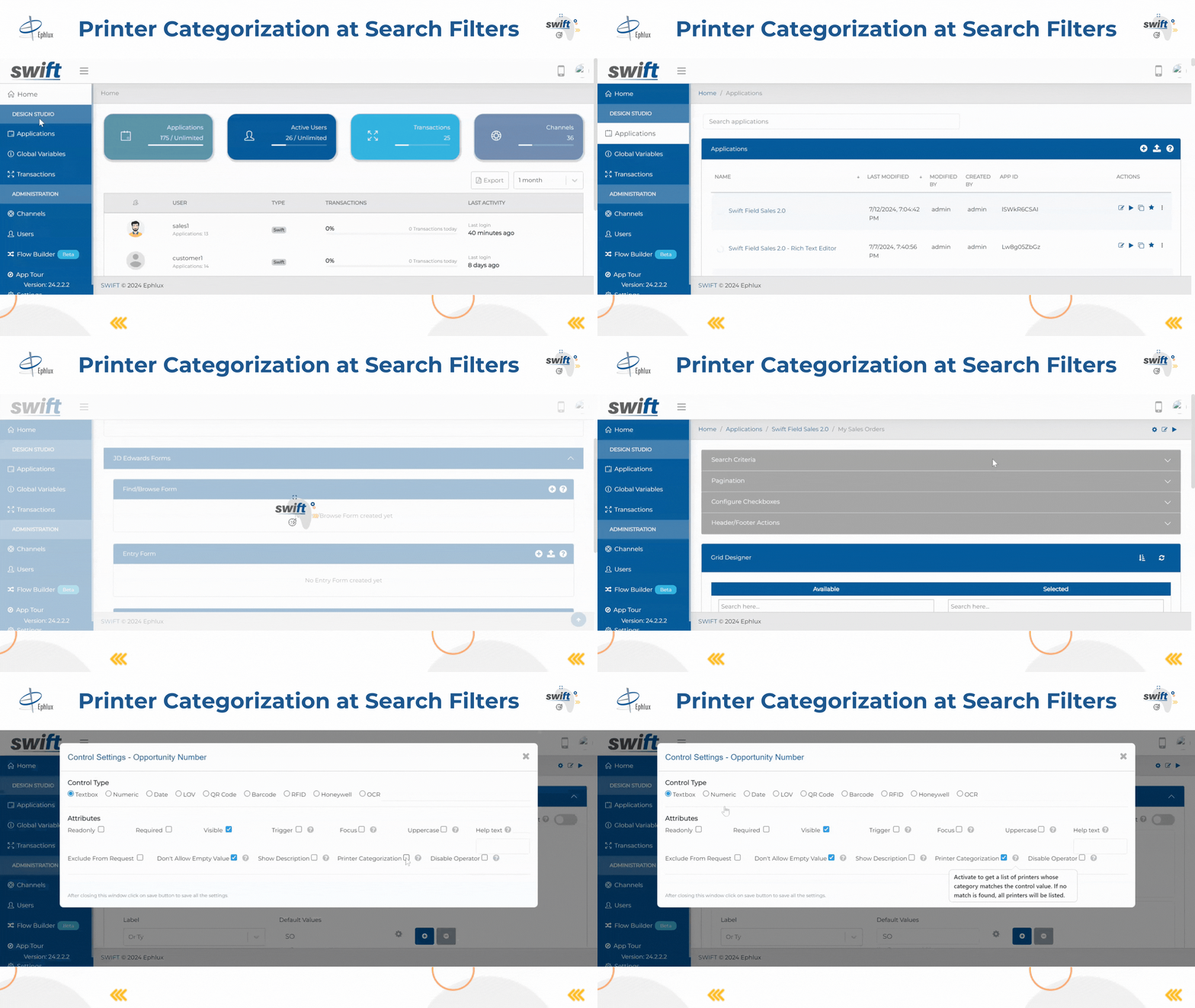
Click the gear icon on the search filter of your FBF.
Enable the "Printer Categorization" option.
End User Experience
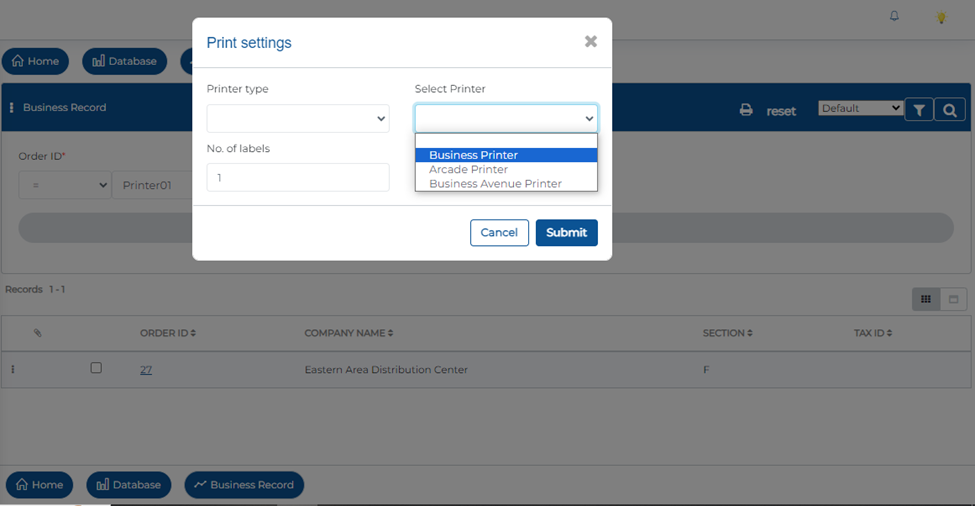
When the end user enters details in the search filter, only the relevant printers will be displayed in the printer list.
All irrelevant printers will be automatically removed from the list.
You can see the list on the printer setting icon located on the blue header bar of your end-user app FBF.
Row Level Printing: Row level printing allows end users to print any specific row in the Find & Browse Form (FBF). Follow these steps to configure row-level printing
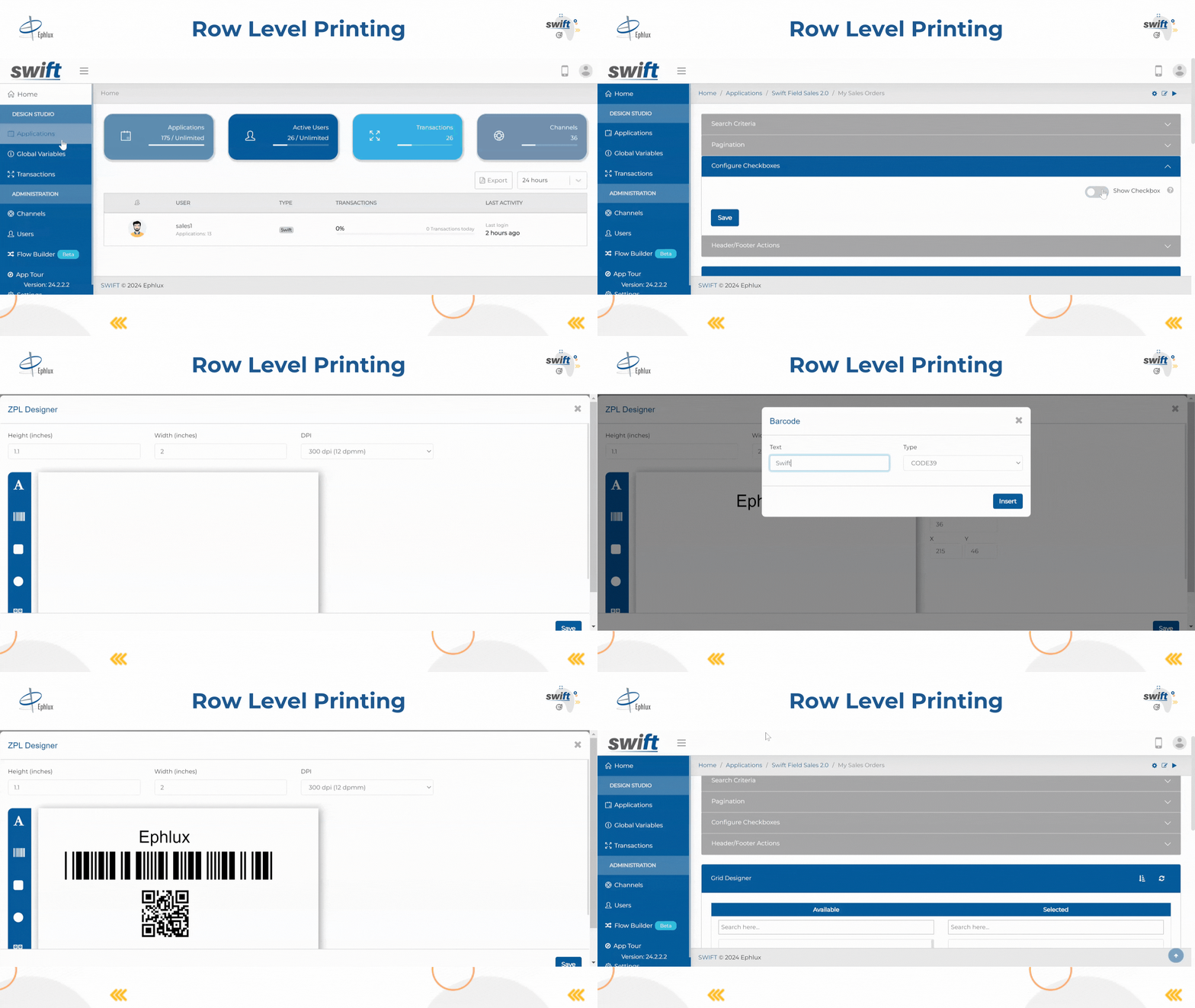
Configure Row Level Printing
Go to the FBF and open the “Configure Checkbox” section.
Toggle the “Show Checkbox” switch to enable checkboxes for each row.
Select the desired selection type (single or multiple).
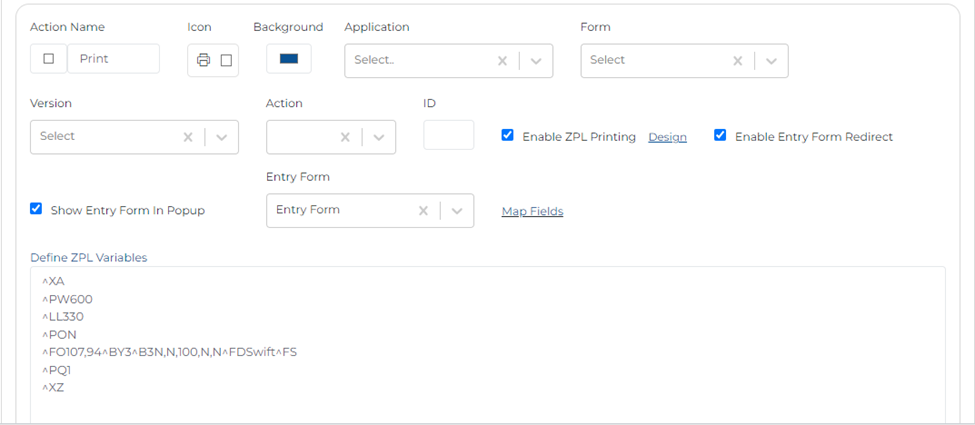
Provide an action name, such as "Print Row."
Enable the “Enable ZPL Printing” configuration.
Design ZPL Format
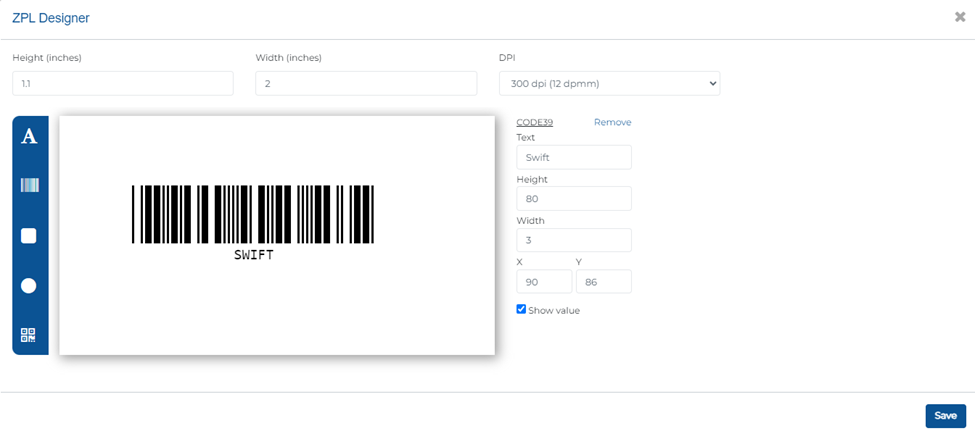
Click on the “Design” link to create your ZPL template.
Design the ZPL format as needed for your printout.
End User Experience
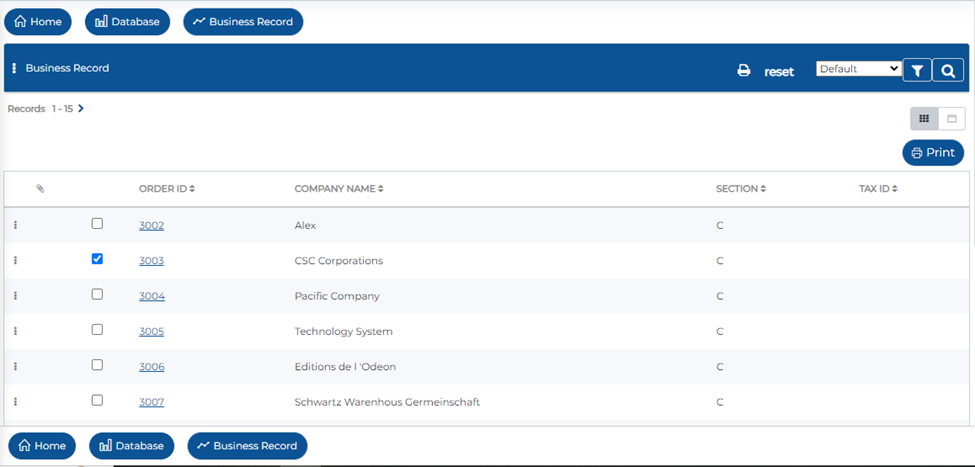
Open the FBF list view.
You will see checkboxes next to each row.
Select the row(s) you want to print.
A button with the action name (e.g., "Print Row") will appear at the top of the table.
Click the button to print the selected row(s) using the designed ZPL format.
This feature streamlines the printing process, making it easy to print specific rows directly from the grid, enhancing productivity and ensuring accurate data capture.
Slider control as a component
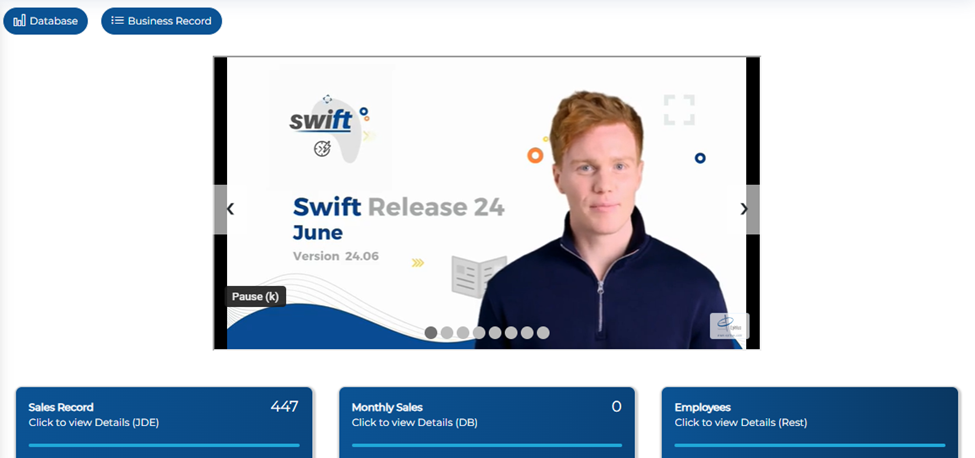
This feature lets users display and navigate through multiple images or videos in a slideshow format. It provides a visually appealing way to showcase media content and enhances the user experience by allowing them to easily view and interact with the images or videos.
How to use this feature
To use the Slider control as a component, follow these steps
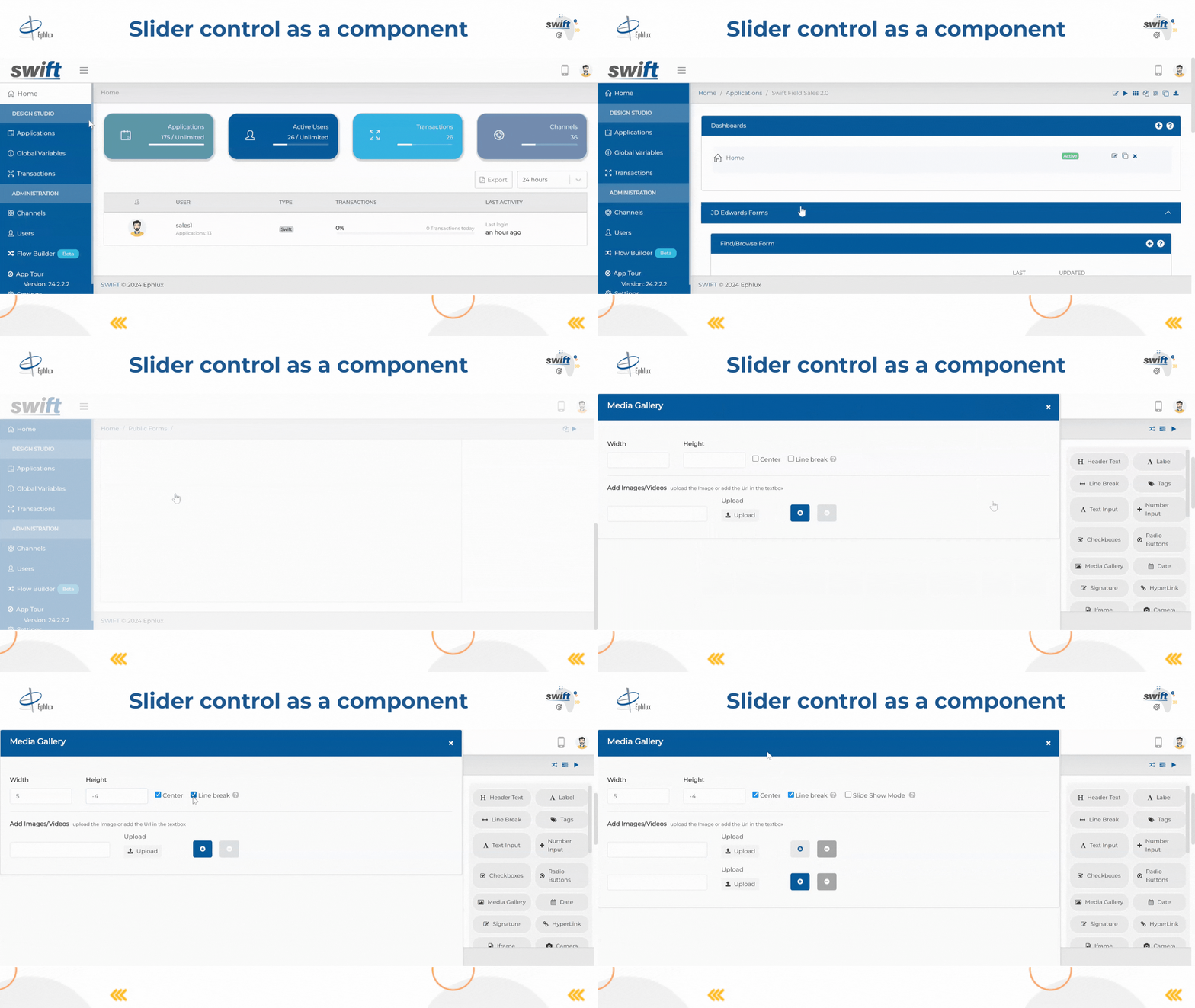
Drag and drop the Slider control onto your form or page.
Customize its properties for appearance and functionality.
Upload images or videos directly or from existing files.
Arrange media in your preferred order.
Save changes and preview the Slider control.
Test navigation through media content smoothly.
End User Experience
Wrapping Up
Swift's latest updates are designed to make your automation tasks easier. With new features like Data Extraction, MO at Grid Level, ZPL Designer, and Slider Control, Swift helps you capture data, manage media, design labels, and create media slideshows effortlessly.
Remember, optimizing your workflow leads to greater efficiency!
Thank you for being a part of the Swift community. Here's to optimizing your processes and achieving success!
With 💙 from Swift
Your feedback is essential in driving us forward, so please don't hesitate to share your thoughts with us; and stay tuned for more groundbreaking features as we evolve!