What's new in Swift Release 25 in September?
The September 2025 release focuses on enhancing app flexibility, improving data handling, and enabling more dynamic and personalized user experiences.
Read on to discover the highlights of this release and unlock new possibilities for your app automation journey.
Swift Release 25 – September features the following capabilities:
Enhanced Date Control: The Date component now supports the Date & Time feature along with different default values for Month type.
Voice Enablement for AI Agents: Enable male or female voice options from the Design tab for your AI Agents.
FAQs in Knowledge Base: Equip Agents with context-aware, accurate responses with predefined FAQs.
App ID Management: Retain or update the existing App ID.
Prevent Business Rule Overwrites: Retain Application, Category, and Proxy fields during user update or import.
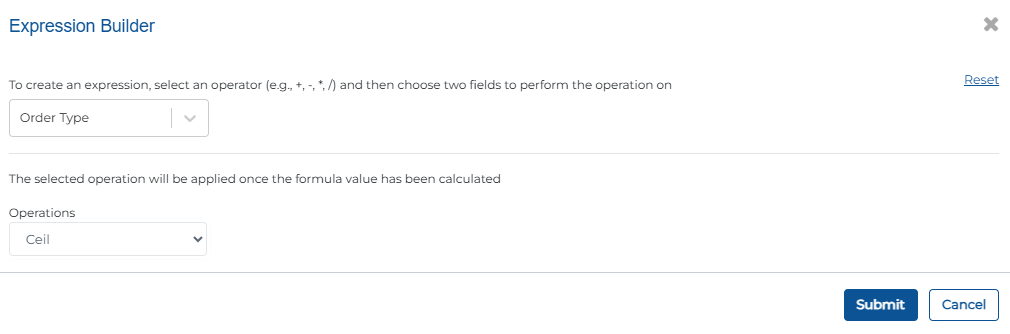
Ceil & Floor Operations for Numbers – Round numeric inputs up or down to standardize values easily.
Conditional Data Mapping for Input Fields: Apply Conditional mapping on fields to dynamically change the field value when condition meets.
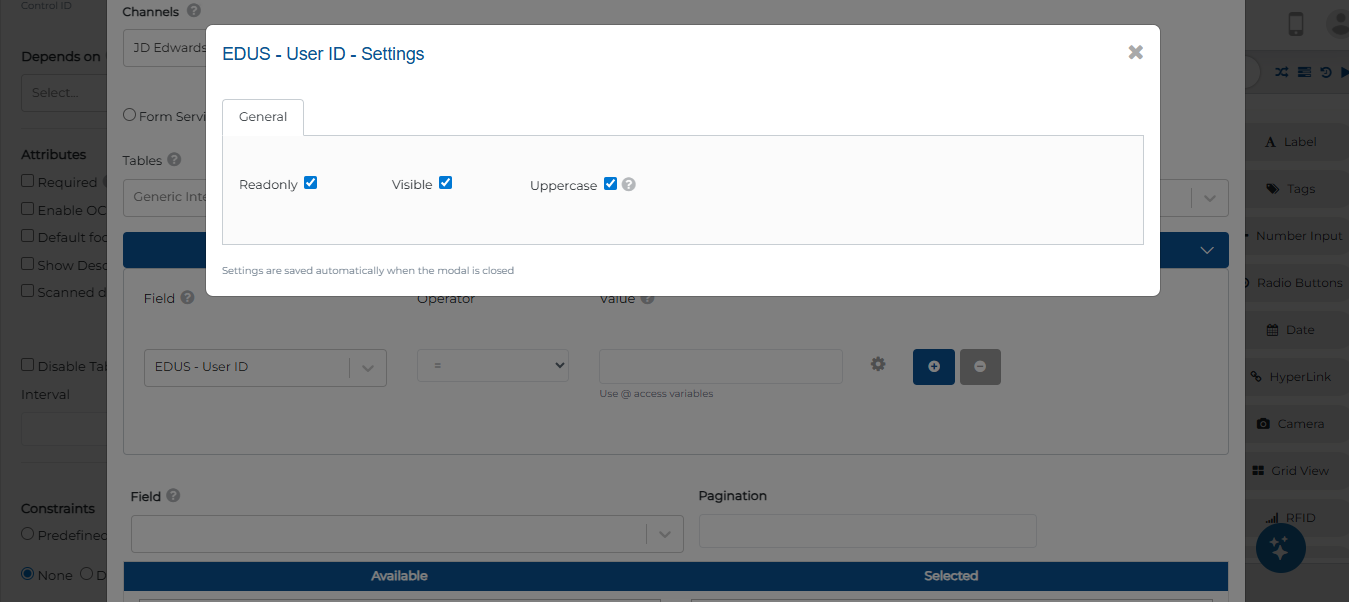
Enhancements in Enable Search Feature – Configure search fields to be read-only, visible, and automatically uppercase.
Theme Customization for Buttons: Forms now allow theming of buttons with customizable styling.
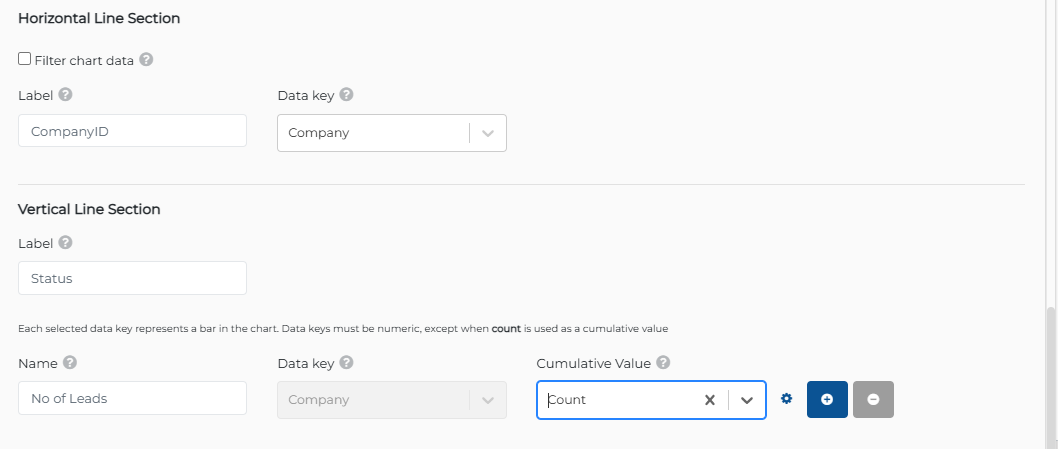
Cumulative Count in Bar Charts: Treat Count as cumulative, showing running totals for numeric data keys.
So without further ado, let’s dive into the exciting new features we recently released!
Enhanced Date Control
With this release, we’ve extended the Date Control component to include additional options for greater flexibility:
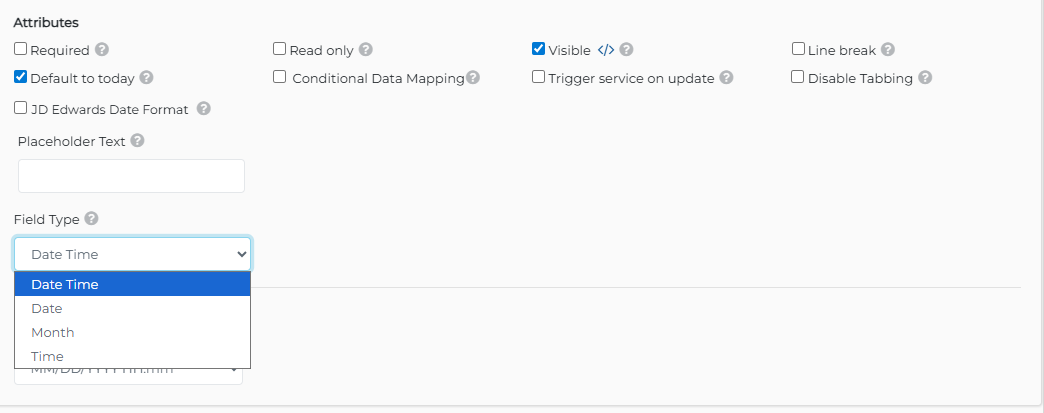
DateTime Option - By selecting the DateTime field type, you can capture both date and time values. This helps align data entry more closely with workflows that require precise timestamps.
Month Option with Defaults - A new Month field type is also available. You can also set default values such as:
Current Month
Previous Month
Next Month
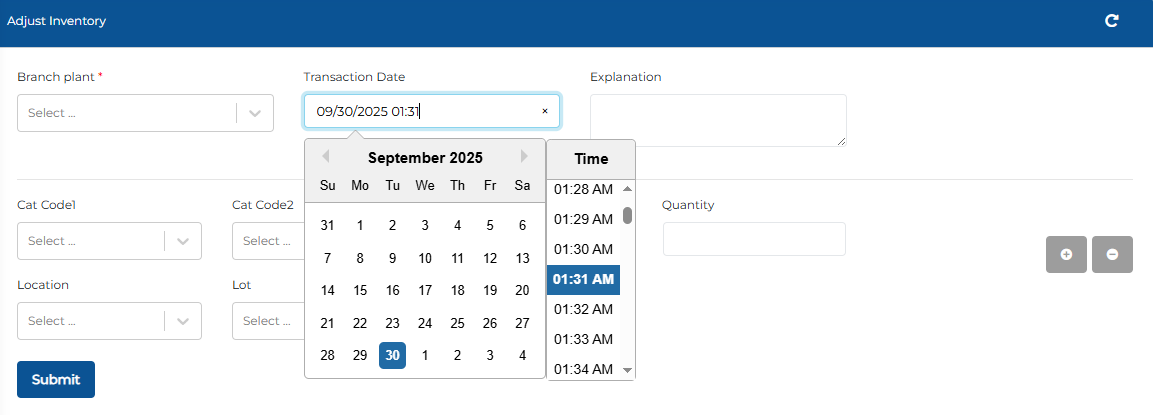
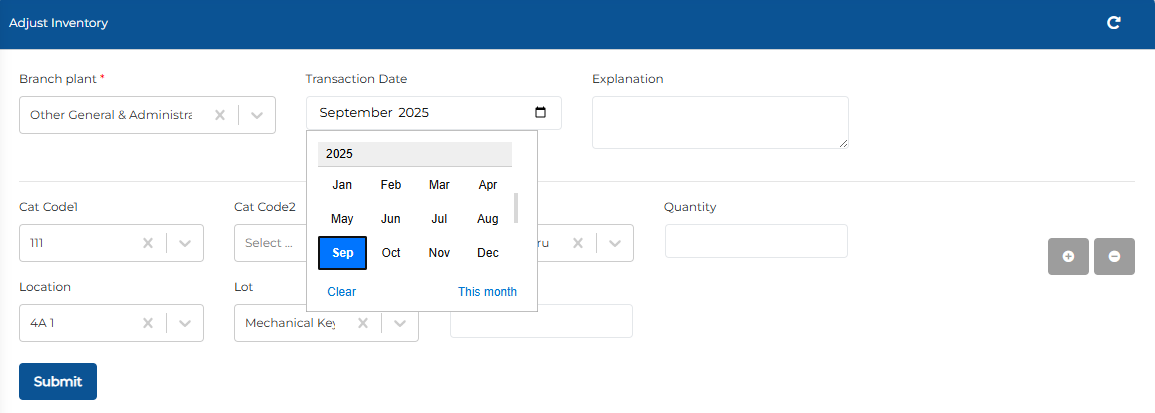
How it works
Open your app.
Navigate to the entry form where the Date Control is configured.
In the Field Type dropdown, choose between Date, DateTime, or Month depending on your use case.
These enhancements make it easier to configure date fields according to the level of detail your workflow requires.
Voice Enablement for AI Agents
With this release, AI Agents now support voice interaction. This gives you the option to let users talk directly with your agent.
Configuration steps
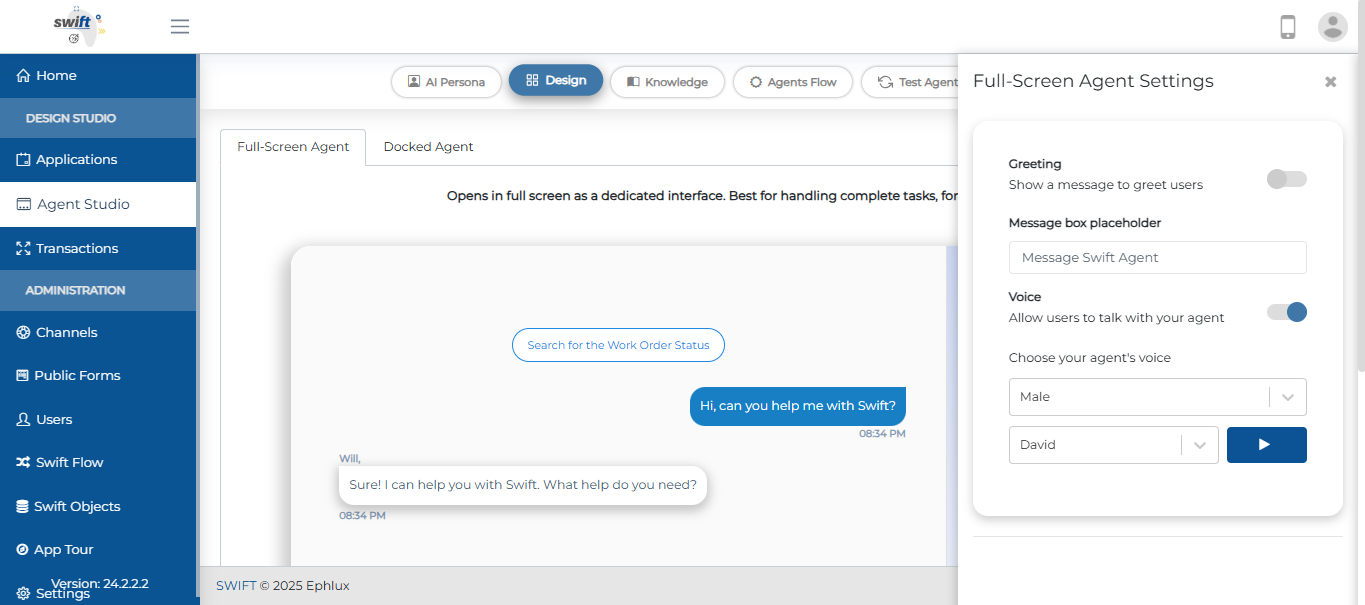
You can enable it from the Design tab of Agent.
Navigate to Agent Settings.
Enable the Voice option.
Choose a preferred voice — Male or Female.
Once enabled, users can interact with your AI Agent through spoken conversations instead of just text.
FAQs in Knowledge Base
With this release, a new FAQs section is now available in the Agent Studio → Knowledge Base tab. This allows you to provide your AI Agent with a set of predefined Q&A pairs, giving it context-awareness for more accurate and relevant responses.
How to set it up
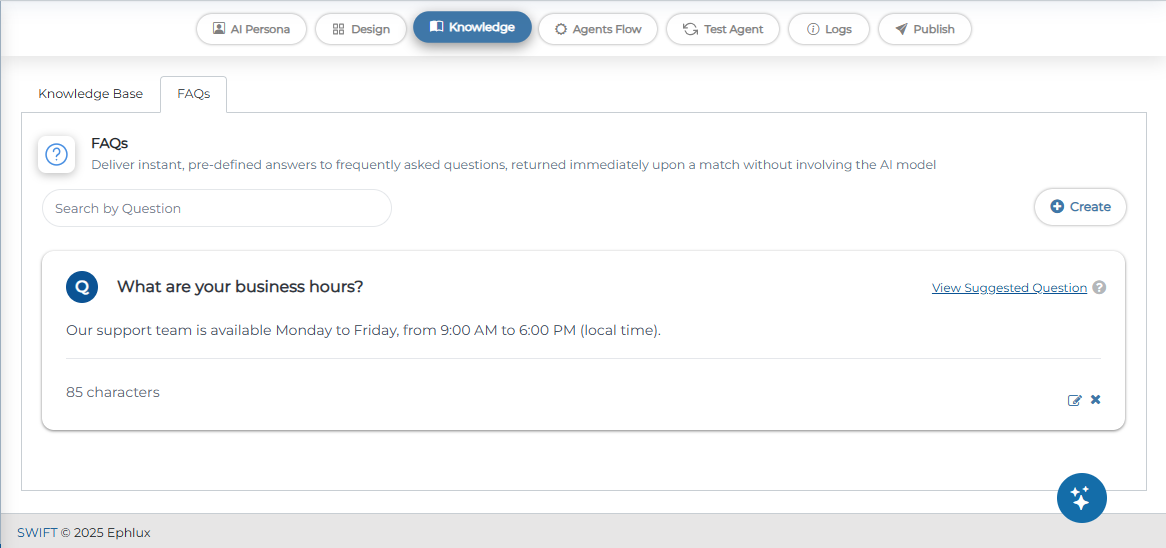
Go to the Knowledge Base tab in Agent Studio.
Click Create and provide a Question and its Answer.
If a user’s query matches any version of the question, the predefined response will be returned instantly to end users.
This provides consistent answers to common needs without triggering extra response costs of LLM.
App ID Management
With this release, you now have the option to change the existing App ID when moving apps between instances.
What’s new:
Previously, importing an app into another instance would automatically generate a new App ID. Now, you can retain or update the existing App ID during import.
How It Works
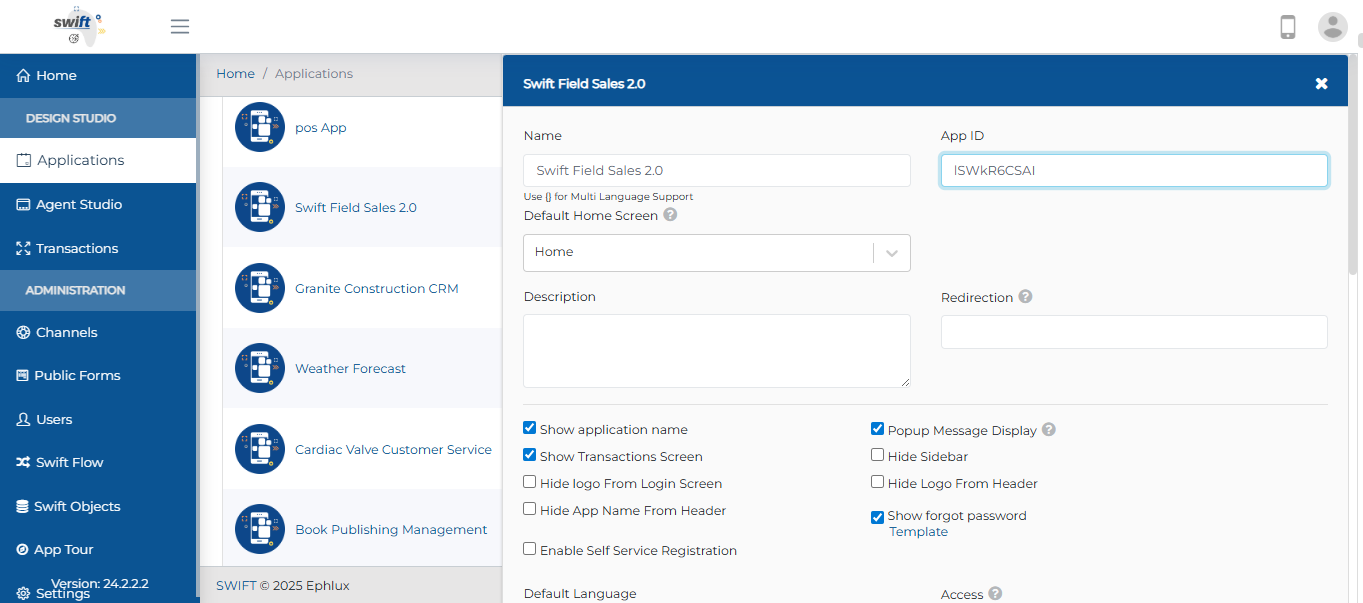
Export your app from the source instance.
When importing into the target instance, you’ll have the option to keep the existing App ID or assign a new one.
The system will no longer force a new ID unless you choose to create one.
This provides more control over app portability and simplifies environment management.
Prevent Business Rule Overwrites
With this release, we added new options to give you more control when applying business rules to imported users. You can now enable settings to retain existing Application, Category, and Proxy assignments instead of overwriting them during import.
What you'll see
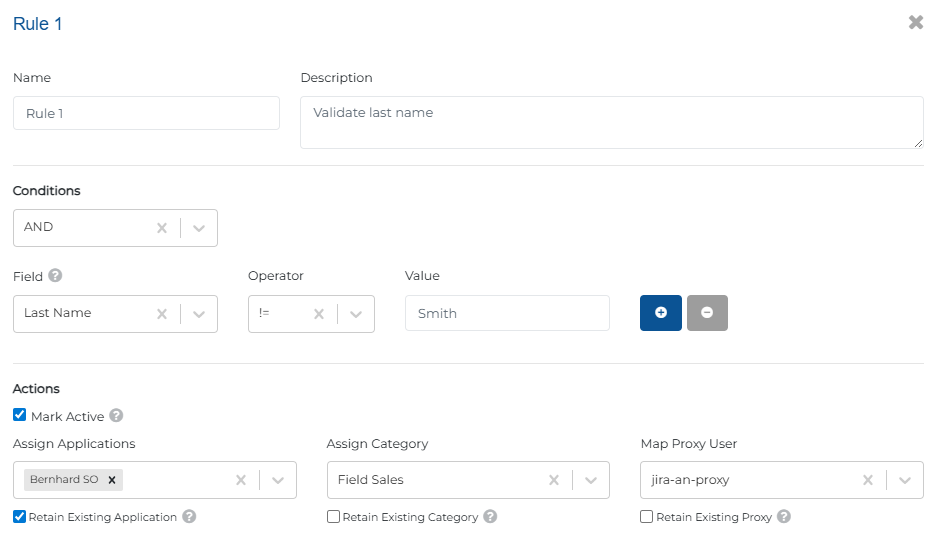
Go to the Business Rule tab from users.
Open Action Configuration and assign app, category, and proxy user as needed.
Enable the retain options (Application, Category, Proxy) to keep existing values when importing users from Excel.
This update helps prevent accidental overwrites, ensuring existing configurations remain intact while still allowing flexibility for updates.
Ceil & Floor Operations for Numbers
With this release, we’ve added support for Ceil (round up) and Floor (round down) operations, giving you more control over numeric inputs and formulas.
How it works

Open the Entry Form in your app.
Drop the Number Input component.
In the Operations option, choose either Ceil or Floor from the dropdown.
This makes it easier to standardize numeric values when exact decimal precision isn’t required.
Conditional Data Mapping for Input Fields
With this release, We’ve introduced Conditional Data Mapping, allowing input fields to automatically update their values based on defined conditions or expressions.
How it works
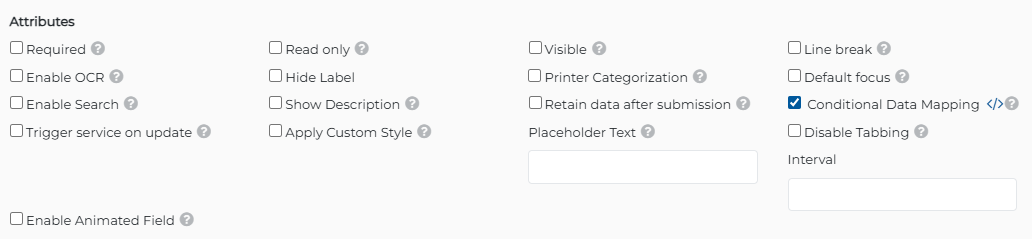
Go to the Entry Form and drag-and-drop any Input (Text, Number, Tag etc) component.
In Attributes, enable conditional Data Mapping.
Configure the condition in the popup that appears.
Apply DependsOn feature on the field on which you applied the Conditional Data Mapping.
This enhancement brings more flexibility to forms by letting fields adapt automatically to your defined logic.
Enhancements in Enable Search Feature (Entry Form)
With this release, We’ve enhanced the enable search feature in entry forms by adding the read-only, visible, and uppercase options in Search Criteria for better control and consistency.
How to Configure
Go to the Entry Form and drag-and-drop a Text Input component.
Enable the Enable Search attribute to provide access to the search feature, facilitating data discovery.
Configure the search filter by setting it to Read Only, Visible, and Uppercase, similar to the settings available in Find and Browse forms.
This improvement ensures search fields behave consistently and helps maintain clean, standardized data inputs.
Theme Customization For Buttons
With this release, we’ve added Theme options for buttons to give more control over their appearance.
How it works
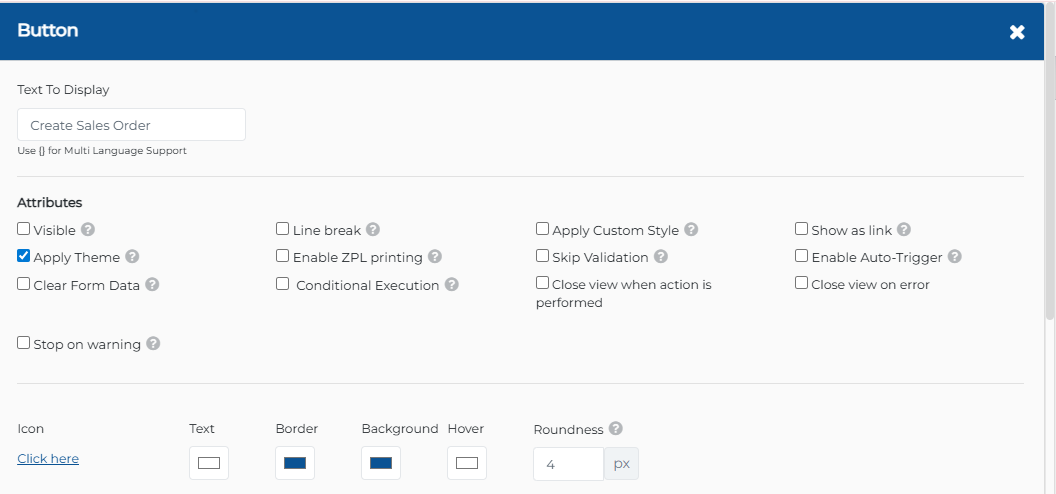
Go to the Form and drag-and-drop a Button component.
Enable the Apply Theme attribute to customize the button’s appearance.
Adjust the available styling options for a personalized look.
This allows for consistent and visually appealing buttons across your forms.
Cumulative Count in Bar Charts
With this release, we’ve added the option to treat Count as a Cumulative Value in bar charts, allowing numeric data keys to display running totals.
How it works
Go to the Dashboard from the home of any app.
Drag-and-drop a Chart component.
Configure the Horizontal Line Section (Filter chart data, Label, Status, Data Key, Name).
Configure the Vertical Line Section (Label, Status, Data Key, Name).
Enable the Cumulative Value option for the relevant numeric data key.
This update allows charts to better represent progressive totals, such as cumulative leads or sales over time.
Wrapping Up
That wraps up our latest updates to Swift!
These updates collectively enhance flexibility, empower deeper control over forms and charts, and make your apps more dynamic, intelligent, and user-friendly.
📌 Pro Tip: Combine Conditional Data Mapping, Cumulative Bar Charts, and Theme-enabled Buttons to create smarter, visually consistent, and interactive workflows tailored to your business needs.
Stay tuned for more innovations, and as always, happy designing with Swift!
Thank you for being a part of the Swift community. Here's to optimizing your processes and achieving success!
With 💙 from Swift
Your feedback is essential in driving us forward, so please don't hesitate to share your thoughts with us, and stay tuned for more groundbreaking features as we evolve!